Privacy-First — Zero Server Policy

Your Text Is GettingHidden Behind Buttons

Every platform covers parts of your video with UI elements — like buttons, profile icons, and captions. Check your safe zones before posting to ensure nothing gets cut off.

73%
Creators lose CTA visibility
3
Major platforms supported
100%
Processed locally
No uploads No tracking No data stored
  SUPPORTED
TikTok 2026 UI Instagram Reels YouTube Shorts iPhone 15 Pro Max Samsung Galaxy S24 Google Pixel 9 Rule of Thirds Text Placement Tester HD Export TikTok 2026 UI Instagram Reels YouTube Shorts iPhone 15 Pro Max Samsung Galaxy S24 Google Pixel 9 Rule of Thirds Text Placement Tester HD Export

Upload Video or Image

Drag & drop or click to browse your vertical media

Supports MP4 · MOV · WebM · JPEG · PNG · WebP

How It Works

Check your video safe zones in 4 simple steps

1

Upload Media

Drop your vertical video or image — supports MP4, MOV, JPEG, PNG and more.

2

Select Platform

Choose TikTok, Instagram Reels, or YouTube Shorts to see the real UI overlay.

3

Test Text Placement

Add custom text and drag it around to make sure it's visible within the safe zone.

4

Export & Share

Download a high-resolution reference frame with the overlay to share with your editor.

Perfect Your Video Framing

Everything you need to know about social media safe zones in 2026

What is a Safe Zone?

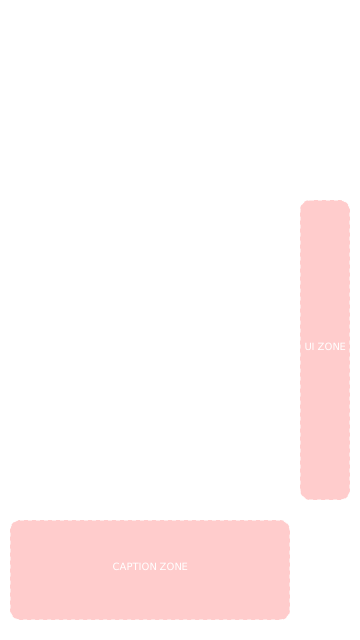
A safe zone is the area of your 9:16 vertical video that remains visible and unobstructed across all devices. Platform UI elements — like the Like button, comments icon, share button, profile picture, and caption text — cover significant portions of the screen.

If your call-to-action, logo, or important text falls behind these elements, your audience simply can't see it. Our tool shows you exactly where those danger zones are.

TikTok Safe Area Template 2026

TikTok's interface is one of the most cluttered. The right sidebar contains Like, Comment, Share, Save, and profile buttons. The bottom 20% is reserved for captions, username, and the music ticker.

  • Right side: ~15% blocked by interaction buttons
  • Bottom: ~20% blocked by caption & sound info
  • Top: ~8% blocked by status bar & following tabs
  • Safe area: center-left portion, roughly 65% of frame

Instagram Reels Safe Zone

Instagram Reels has a similar layout but with slightly different proportions. The right sidebar is thinner, but the bottom area is larger due to the caption expansion area and shop tags.

  • Right side: ~12% blocked by interaction icons
  • Bottom: ~22% blocked by username, caption, audio
  • Top: ~6% blocked by status bar
  • Best for CTAs: upper-center and center-left

YouTube Shorts UI Guide

YouTube Shorts has the cleanest UI of the three, but still covers key areas. The subscribe button, channel name, and description sit at the bottom, while Like/Dislike/Comment/Share are on the right.

  • Right side: ~10% blocked by action buttons
  • Bottom: ~18% blocked by channel info & CTA
  • Top: ~5% blocked by search & camera icons
  • Most forgiving platform for text placement

Platform Safe Zone Comparison

Feature TikTok Reels Shorts
Right sidebar blocked~15%~12%~10%
Bottom area blocked~20%~22%~18%
Top area blocked~8%~6%~5%
Safe zone area~57%~60%~67%
Caption overlay✓ Heavy✓ Expandable✕ Minimal
Music ticker✓ Yes✓ Yes✕ No
Best CTA positionCenter-leftUpper-centerCenter

Frequently Asked Questions

Everything about video safe zones and content framing

What is a social media safe zone?
A safe zone is the area of your vertical video (9:16 aspect ratio) that remains visible and isn't covered by the platform's interface elements — like the Like button, comments, share icon, profile picture, captions, and navigation tabs. Content placed outside this zone may be partially or fully hidden from your audience.
Is the TikTok safe area template updated for 2026?
Yes! Our overlays are regularly updated to match the latest UI layouts of TikTok, Instagram Reels, and YouTube Shorts. We track platform updates and adjust the overlay positions to ensure accuracy.
Does this tool upload my video to a server?
Absolutely not. All processing happens 100% locally in your browser using JavaScript. Your video or image never leaves your device — there is no server, no upload, no cloud processing. You can verify this by disconnecting from the internet and using the tool offline.
Can I use images instead of videos?
Yes! You can upload both images (JPEG, PNG, WebP) and videos (MP4, MOV, WebM). This is perfect for checking thumbnail safe zones, cover images, or static content like carousel posts that might also appear in Reels or Shorts format.
What dimensions should my vertical video be?
The standard vertical video format is 9:16 aspect ratio, typically 1080×1920 pixels. All three major platforms (TikTok, Instagram Reels, YouTube Shorts) use this format. Our tool automatically scales any uploaded media to fit and previews it correctly.
How does the text placement tester work?
Enable the "Text Placement Tester" toggle, type your call-to-action or caption text, then drag it around the preview. The zone indicator at the bottom will show whether your text is in a safe zone (green), warning zone (yellow), or danger zone (red) based on the selected platform's UI layout.
Does the exported screenshot include the overlay?
Yes! The "Download Reference Frame" button exports a 1080×1920 high-resolution PNG that includes your video/image frame, the selected platform overlay (at your chosen opacity), and any text you've placed. Share it with your video editor as a visual guide.
Why do safe zones differ between platforms?
Each platform has a unique interface layout. TikTok has a large right sidebar with multiple buttons and a prominent music ticker at the bottom. Instagram Reels has expandable captions and shop tags. YouTube Shorts has the cleanest interface but still covers the bottom area with channel info. That's why checking each platform separately is important.

More Creator Tools