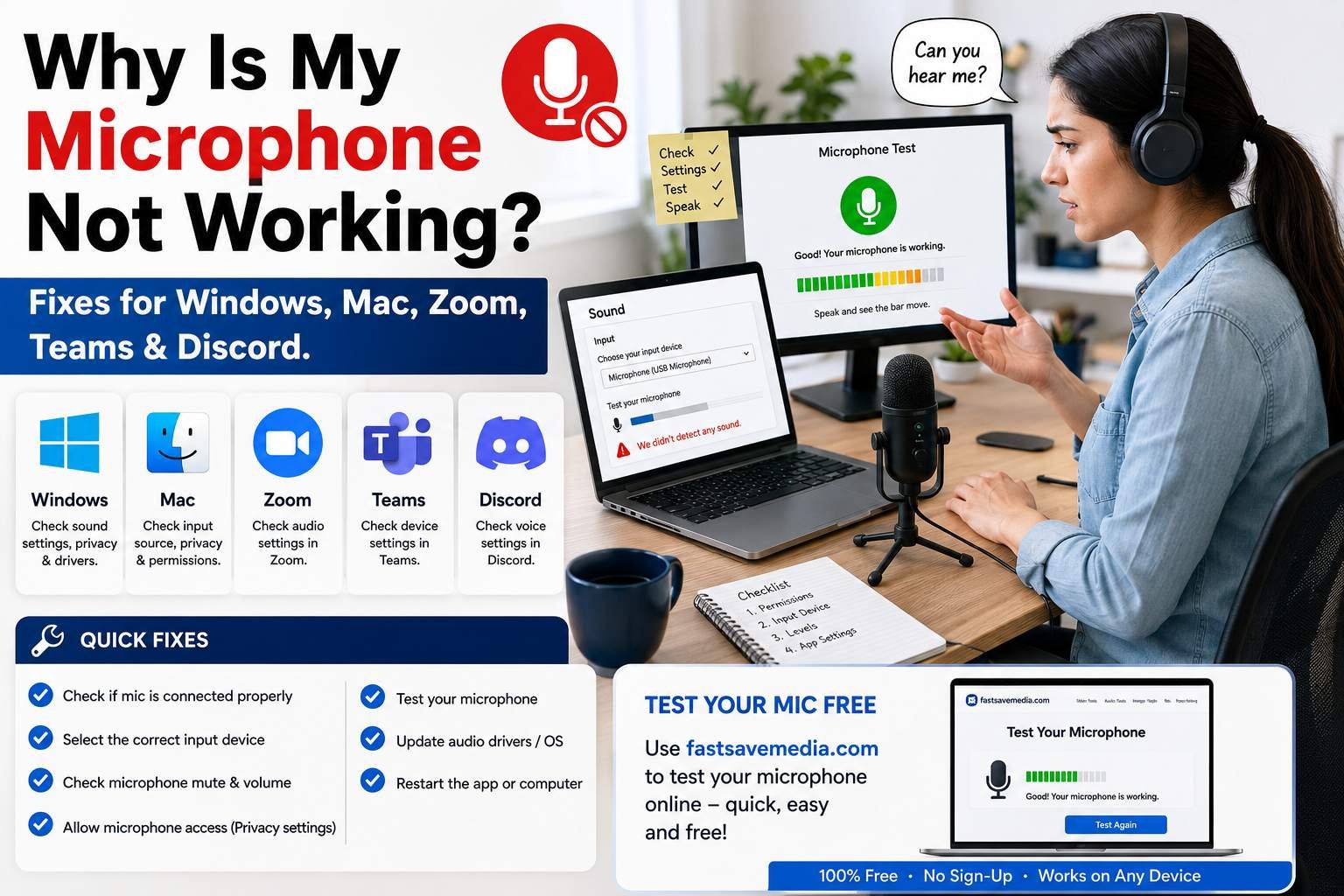
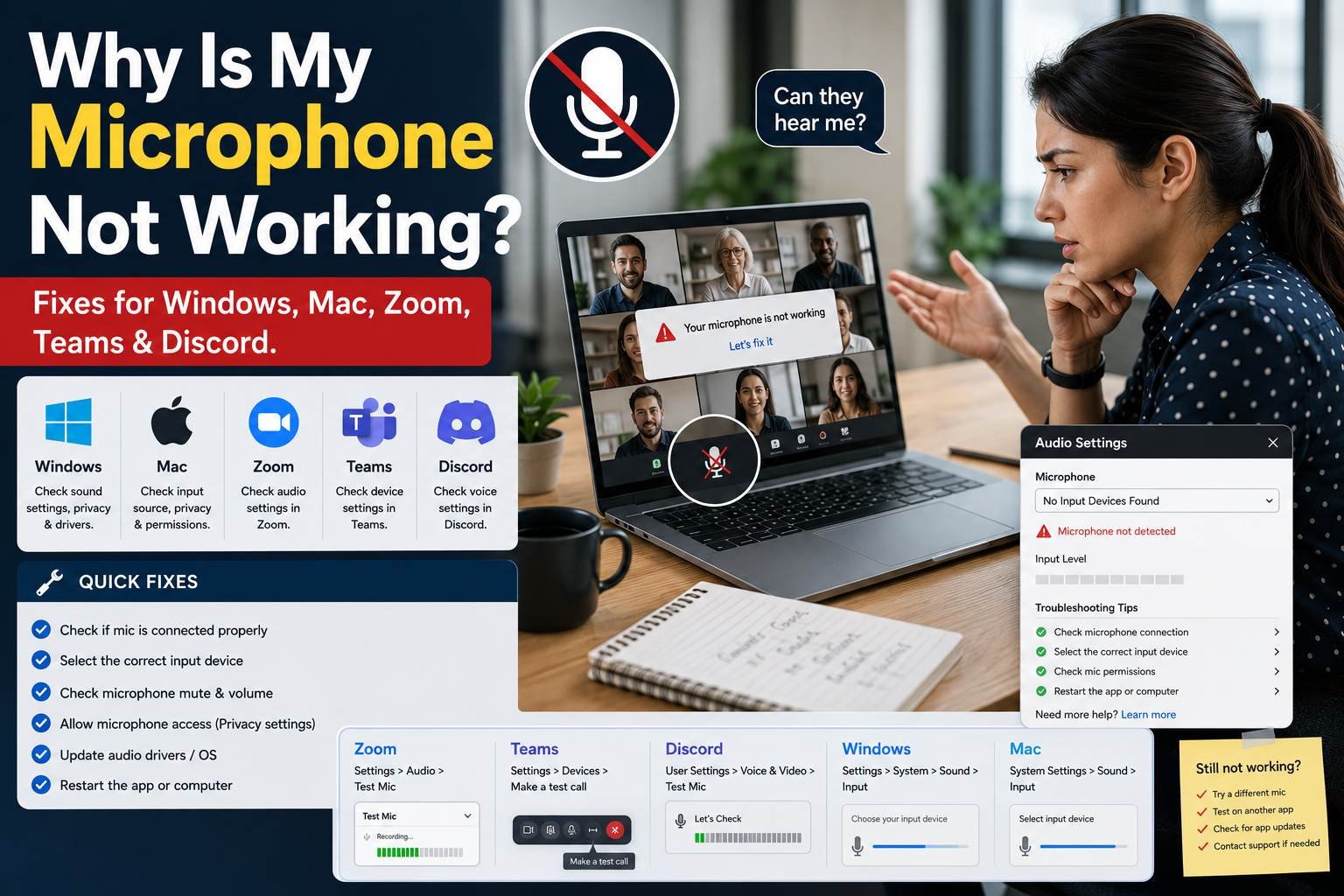
- A microphone that stopped working is almost always a settings problem, not a hardware failure.
- Check three things in order: the physical mute, the input device selection (both OS and app level), and app permissions.
- If your mic works in one app but not another, the hardware is fine — the fix is inside that specific app’s settings.
- Zoom, Teams, Google Meet and Discord each check microphone permission separately from your operating system and from each other.
- Confirm any fix with a free browser mic test before trusting it on a real call.
A microphone that “stopped working” almost never means the hardware failed overnight. In the vast majority of cases it’s a settings problem — the wrong input device selected, a revoked app permission, or a mismatch between your operating system’s default microphone and the specific app you’re using. This guide works through the fastest checks first, then platform-by-platform fixes for Windows, Mac, Zoom, Teams, Google Meet and Discord.
| Symptom | Likely cause | First fix |
|---|---|---|
| Worked yesterday, silent today | Default device or permission reset | Recheck input device & permissions |
| Works in one app, not another | App-specific device selection or permission | Reselect mic inside that app |
| No device listed at all | Driver issue or loose connection | Check Device Manager / try a different port |
| Silent in every app, everywhere | Physical mute or hardware fault | Check mute switch, test on another computer |
| Fails only in Discord | Input Sensitivity set too high | Lower sensitivity slider |
2-minute checklist (try this first)
- Check for a physical mute. Headsets and standalone mics often have a mute button or in-line switch — easy to miss, the single most common false alarm.
- Confirm the right input device is selected system-wide. Open your OS sound settings and check the default microphone is actually the one you’re trying to use.
- Check the app’s own device selection. Zoom, Teams, Discord and your browser can each independently pick a different microphone than your system default.
- Check app-level mic permission at the OS level. A revoked permission looks and behaves exactly like a broken microphone from inside the app.
- Try a different USB port or cable for wired/USB microphones — rules out a connection fault in seconds.
- Test it in a neutral tool to confirm the fix actually worked before trusting it in a real call.
Fixing microphone issues on Windows
Open Settings > System > Sound > Input and confirm the correct microphone is selected as the input device, then speak and watch the volume bar move as you talk. If nothing moves, go to Settings > Privacy & Security > Microphone and confirm both “Microphone access” and “Let apps access your microphone” are turned on — a Windows update occasionally resets this toggle silently. If the device doesn’t appear in the list at all, open Device Manager, look under “Audio inputs and outputs” for a yellow warning icon, and try “Update driver” before assuming the microphone itself has failed.
Fixing microphone issues on Mac
Go to System Settings > Sound > Input and confirm the correct microphone is selected, watching the input level bar as you speak. Then check System Settings > Privacy & Security > Microphone and make sure the specific app you’re using has the toggle switched on — macOS asks for this permission the first time each app tries to use the mic, and denying it once by accident is a common, easy-to-miss cause.
Permission issues specifically — rather than device selection — are common enough to deserve their own deep dive: see Microphone Access Denied? How to Allow Mic Permissions if the steps above point to a permissions problem.
Zoom microphone not working
Inside a Zoom meeting or in Settings > Audio, check the microphone dropdown and click Test Mic — you should see the input level move as you speak. If the dropdown is empty or the wrong device is listed, close Zoom completely and reopen it, since Zoom sometimes only detects a newly connected microphone after a fresh launch. If the test still shows nothing, the issue is very likely the OS-level permission described above rather than Zoom itself.
Microsoft Teams microphone not working
Go to Settings > Devices in Teams and explicitly reselect your microphone from the dropdown, even if it already looks correct — Teams can silently fall back to a different device after a call ends. If your mic works in every other app but not in Teams specifically, check that Teams has microphone permission separately from your system-wide setting, since some organisations manage Teams permissions through a separate policy that overrides personal settings.
Google Meet microphone not working
Click the three-dot menu inside a Meet call, choose Settings > Audio, and confirm the correct microphone is selected. Because Meet runs in the browser, also check your browser’s own site permissions — in Chrome, click the padlock icon in the address bar and confirm “Microphone” is set to Allow for meet.google.com specifically, separate from any OS-level permission.
Discord microphone not working
Open User Settings > Voice & Video and confirm the correct input device is selected, then check the Input Sensitivity slider — if it’s set too high, Discord may never register your voice as loud enough to transmit, which looks identical to a broken microphone. Also confirm Discord has microphone access in your operating system’s privacy settings, since app-level and OS-level permissions are checked separately.
When it actually is a hardware problem
If your microphone fails the same way in multiple, completely unrelated apps and websites — not just one — and you’ve confirmed it isn’t muted and is plugged into a working port, the hardware itself is the more likely culprit. Common physical causes include a frayed or damaged cable, a failing USB port (test a different one on the same computer), or, for wireless headsets, a depleted battery or an unpaired Bluetooth connection. At that point, testing with a completely different microphone in the same setup is the fastest way to confirm whether it’s the device or something else entirely.
Wrap-up
Work through the checklist in order: physical mute, system input device, app-level device selection, permissions, connection, then a neutral test. The overwhelming majority of “microphone not working” cases resolve in the first three steps, because a settings mismatch is far more common than an actual hardware failure.
Think you’ve fixed it? Confirm it before your next call — check your live input level and record a short playback clip, free, in your browser, no download or signup.
Test Your Microphone FreeFrequently Asked Questions
Why is my microphone suddenly not working when it worked yesterday?
The most common cause is a permission or default-device change, not a hardware failure — a system update, a new app install, or an OS prompt can silently reset which microphone is selected as default or revoke an app's mic permission. Check your input device selection and app-level mic permissions before assuming the microphone itself is broken.
How do I fix my microphone on Zoom specifically?
In Zoom, open Settings > Audio and confirm the correct microphone is selected in the dropdown, then click Test Mic to confirm you see the input level move. If it's still silent, check your operating system's privacy settings to confirm Zoom has microphone permission, since an OS-level block will look identical to a broken mic inside Zoom itself.
My mic works in other apps but not in Microsoft Teams — why?
This usually means Teams is set to use a different audio device than the app you tested in, or Teams' own microphone permission was denied separately from your system-wide permission. Go to Teams Settings > Devices and explicitly reselect your microphone, even if it already appears selected.
Why can't Discord detect my microphone at all?
Discord commonly fails to detect a microphone because Input Sensitivity is set too high (so it never registers your voice as 'above threshold') or because the wrong input device is selected under User Settings > Voice & Video. Also confirm Discord has microphone access in your operating system's privacy settings, not just inside the app.
Is it my microphone hardware or a software setting causing the problem?
Test the microphone in a completely different app or website first. If it works there, the hardware is fine and the problem is a permission or device-selection setting in the app that's failing. If it doesn't work anywhere, check the physical connection, try a different USB port, and confirm it isn't muted at the hardware level.
How do I test whether my microphone fix actually worked?
Use a browser-based microphone test that shows a live input level and lets you record a short clip for playback. This confirms the fix worked in a neutral environment before you rely on it in an actual call, rather than finding out mid-meeting.