
What Is a Checkerboard Test?
Alternating black and white pixels test pixel sharpness, clarity, and response.
What It Reveals
- Pixel sharpness and scaling issues
- Dead/stuck pixels
- Cable quality problems
Why Should You Run This Test?
A checkerboard pattern is the most demanding test for pixel-level sharpness. Every single pixel must be distinctly black or white, if your display is running at a non-native resolution, using poor scaling, or has a faulty display cable, the checkerboard will immediately look blurry, moiré-patterned, or gray instead of crisp.
Common Symptoms This Test Catches
- Text looks fuzzy or slightly out of focus
- Fine details in images appear soft or smeared
- Screen looks sharp in the center but blurry at edges
- Certain areas of the screen have a colored tint that shouldn't be there
What Causes a Blurry or Distorted Checkerboard?
Resolution & Scaling Issues
- Non-native resolution, If your OS is set to a resolution that doesn't match your monitor's native resolution, pixels are interpolated and the checkerboard will look soft or gray.
- Display scaling above 100%, Windows/macOS scaling (125%, 150%) can blur pixel-level patterns. This is expected behavior but indicates your apps may not be pixel-perfect.
Cable & Connection Issues
- VGA/analog cable, Analog signals introduce noise and blur. Use digital connections (DisplayPort, HDMI, USB-C).
- Damaged or low-quality cable, A faulty cable can cause sparkle, blur, or intermittent pixel issues.
Hardware Defects
- Dead or stuck pixels, Individual pixels that don't respond will stand out dramatically against the alternating pattern.
- Sub-pixel rendering issues, If sub-pixels are misaligned, you'll see colored fringes on the black/white edges.
How to Read Your Results
✅ Crisp, distinct black and white pixels, Your display is running at its native resolution with a good digital connection. Pixel-level rendering is working correctly.
⚠️ Pattern appears slightly gray or has moiré effects, Your display is likely running at a non-native resolution or is using display scaling. Check your OS display settings and ensure the resolution matches your monitor's native spec.
❌ Blurry, soft, or has colored artifacts, There may be a cable issue (try a different cable), your resolution is wrong, or there is a hardware defect. Check: 1) Display resolution, 2) Cable type/quality, 3) GPU output settings.
How to Fix Checkerboard Issues
- Set native resolution, Right-click desktop → Display Settings → Resolution. Choose the resolution marked "Recommended", this is your panel's native resolution.
- Switch to digital cable, Replace VGA with DisplayPort, HDMI, or USB-C. Digital connections are pixel-perfect.
- Set scaling to 100%, For pixel-perfect testing, temporarily set display scaling to 100% (Settings → Display → Scale).
- Check for overscan, Some TVs/monitors crop or scale the image. Disable overscan in your TV settings or GPU driver.
- Try a different cable, If the pattern has sparkle or intermittent artifacts, the cable may be faulty.
- Update GPU drivers, Outdated drivers can cause rendering issues at the pixel level.
Reference results
✅ Good Result, Crisp Checkerboard
When viewed close-up, you should see perfectly alternating black and white squares at the pixel level. From normal viewing distance, the pattern should appear as a uniform medium gray, this means every pixel is rendering correctly and your resolution is native.
⚠️ Mediocre Result, Moiré Pattern
Instead of uniform gray, you see wavy, shimmering patterns or uneven brightness areas. This is called moiré and typically indicates your display is running at a non-native resolution, causing pixel interpolation.
❌ Bad Result, Blurry or Tinted
The pattern looks soft, smeared, or has colored fringes (pink, green, or blue edges). This indicates a cable issue (analog VGA signal), incorrect resolution, or sub-pixel rendering problems.
Quick reference
| What you see | Likely cause | Check next |
|---|---|---|
| Grey blur instead of sharp squares | Browser zoom, OS scaling or a non-native resolution | Set zoom to 100% and the display to its native resolution |
| Wavy moiré lines | Image being resized between source and panel | Turn off overscan or "zoom" modes on TVs and monitors |
| Shimmer or crawling pattern | LCD inversion artefact, often linked to overdrive or refresh rate | Try another refresh rate or overdrive level |
| One square edge with a coloured dot | Possible stuck or dead pixel | Confirm on solid red, green, blue, white and black screens |
Step-by-step troubleshooting
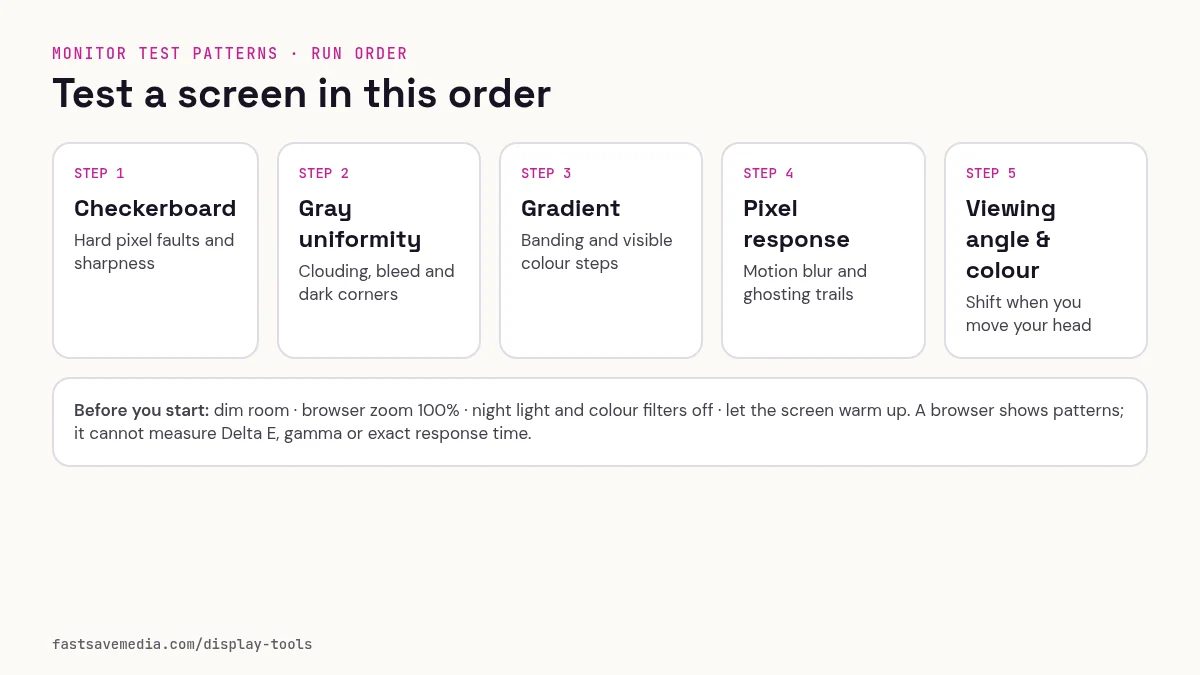
- Set browser zoom to 100% and confirm the native resolution in your OS display settings.
- Start the checkerboard fullscreen and look from your normal distance first, then up close.
- If the pattern is blurry, change scaling before suspecting the panel; it is a setting problem far more often than a fault.
- If you see shimmer, change refresh rate or overdrive and compare.
- Note any fixed dot and check it on the solid colour screens to tell a stuck pixel from a dead one.