
What Is a Gradient Smoothness Test?
A gradient smoothness test displays continuous color transitions to reveal color banding, visible stepping between tones that should blend seamlessly.
Why Color Banding Happens
- 6-bit panels, 262,144 colors. Banding highly visible.
- 8-bit panels, 16.7 million colors. Minimal banding.
- 10-bit panels, 1.07 billion colors. No visible banding.
How to Use
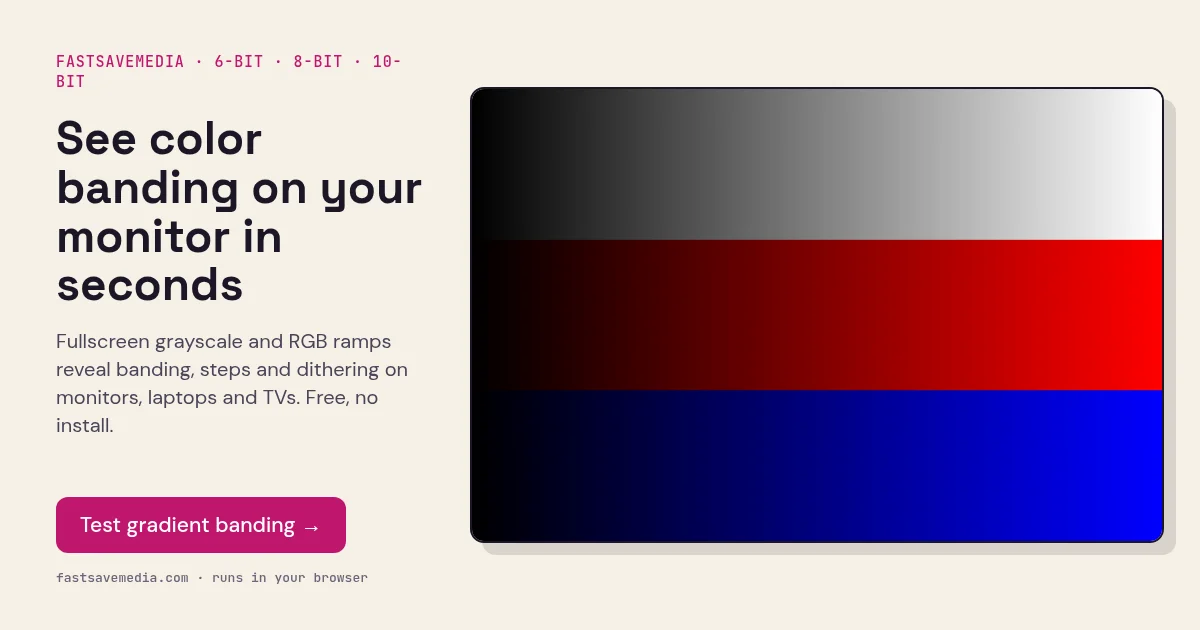
Click Start Test to display three gradients: black-to-white, black-to-red, black-to-blue. Look for visible steps.
Who Needs This?
- Photographers & designers
- Video editors
- Gamers
- New monitor buyers
Why Should You Run This Test?
If you notice blocky transitions in photos, video playback, or games, especially in sky, shadow, or gradient scenes, your monitor may have color banding. This test helps compare gradient rendering, but cannot isolate the panel from the browser, source or signal path.
Common Symptoms
- Visible "steps" or bands in sunset photos or dark movie scenes
- Posterization in Photoshop or Lightroom when editing gradients
- Noticeable banding in game skyboxes or loading screens
- Colors look "chunky" instead of smooth
What Causes Color Banding?
Hardware Causes
- 6-bit panel, Budget monitors use 6-bit panels with only 262K colors. Banding is inherent and cannot be fully fixed.
- 8-bit panel without dithering, An 8-bit panel has 256 native levels per channel; dithering can simulate intermediate tones but its absence does not reduce the native bit depth.
- Low-quality display cable, A damaged or inadequate cable (e.g., VGA instead of DisplayPort) can reduce color depth.
Software Causes
- GPU color output set to limited range, Check GPU settings: use "Full" RGB range (0-255), not "Limited" (16-235).
- Incorrect bit depth in OS, Windows may default to 8-bit even on 10-bit panels. Check display adapter settings.
- Compressed video streaming, Streaming services compress gradients, causing banding in the source content itself.
How to Read Your Results
✅ Smooth, seamless transitions, Your display handles gradients excellently. Likely an 8-bit + dithering or 10-bit panel. No action needed.
⚠️ Slight stepping visible in dark tones, This is common on 8-bit panels. Enable dithering in your GPU driver settings. Consider calibrating your monitor.
❌ Obvious bands/stripes across the gradient, Your display has limited color depth (likely 6-bit) or there is a configuration issue. Check GPU output settings, cable quality, and whether your OS is sending the correct bit depth.
How to Fix or Reduce Banding
- Enable 10-bit output, In NVIDIA Control Panel or AMD Radeon Settings, change color depth to 10-bit if your panel supports it.
- Set RGB range to Full, GPU settings → Display → Output Dynamic Range → Full.
- Use DisplayPort or HDMI 2.0+, Older cables limit color depth. Use DisplayPort 1.4 or HDMI 2.0 for full bandwidth.
- Enable temporal dithering, Some monitors have a dithering option in their OSD menu. This simulates extra colors.
- Calibrate your monitor, Use built-in calibration tools (Windows: Color Management) or a hardware colorimeter.
- If banding persists, The panel may be one limitation, but persistent banding can also originate in the source, browser or signal settings. Consider upgrading to a 10-bit display for professional work.
Reference results
✅ Good Result, Smooth Gradient
You should see a perfectly smooth transition from black to white (and black to red, black to blue) with no visible steps, bands, or stripes. Each tone blends seamlessly into the next like a continuous wash of color.
⚠️ Mediocre Result, Slight Banding
You may notice faint horizontal or vertical bands in the darker portions of the gradient, where tones "jump" slightly instead of blending smoothly. This is typical of 8-bit panels without dithering and is most visible in the dark-to-mid tone range.
❌ Bad Result, Obvious Banding
You see clear, distinct stripes or blocks of color, the gradient looks like a staircase rather than a smooth ramp. This indicates a 6-bit panel, incorrect GPU settings, or a cable that is limiting color depth.
Quick reference
| Possible cause | What to try |
|---|---|
| Night light, blue-light filter or a colour profile | Turn them off and retest |
| Limited RGB range or low bit depth in GPU settings | Check output colour format and range in your graphics settings |
| Image compression or browser colour handling | Compare in another browser |
| Panel bit depth or processing | If bands remain with all settings checked, they likely come from the display |
Step-by-step troubleshooting
- Set zoom to 100% and disable night light or colour filters.
- View the grayscale ramp fullscreen, then each colour ramp.
- Look closely at the darkest quarter, where banding shows first.
- Change one setting at a time and retest, so you know which one helped.