
What Is OLED Burn-in?
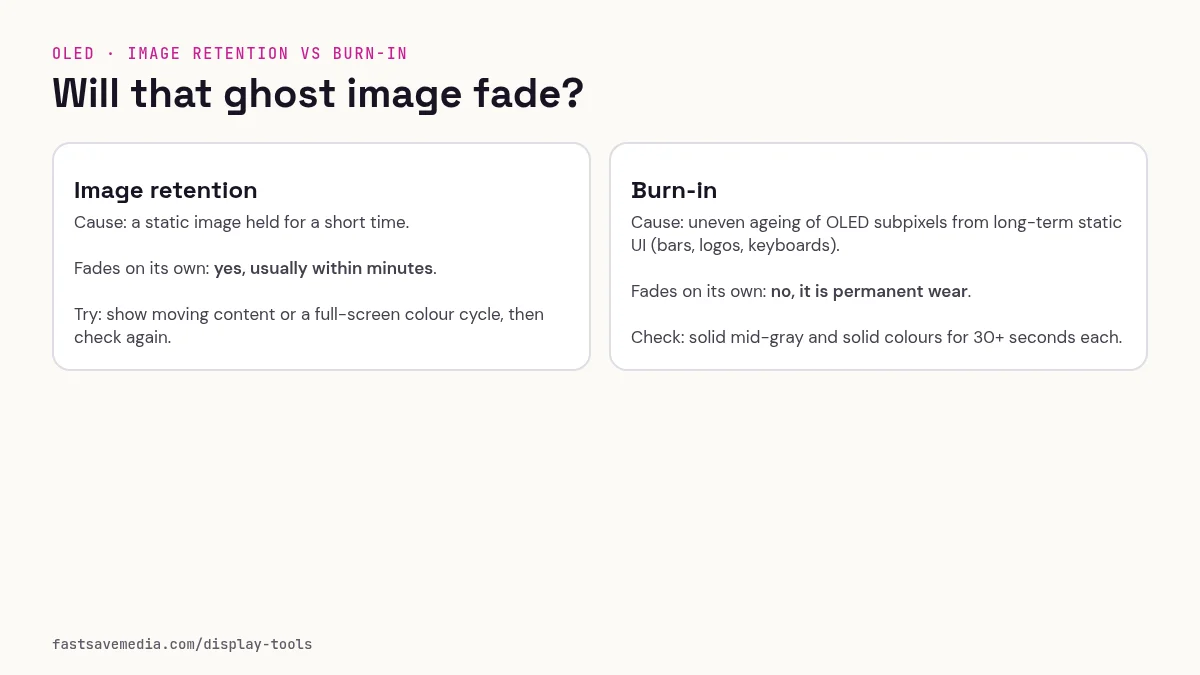
OLED burn-in occurs when static elements leave permanent impressions on an OLED screen.
How This Test Works
Displays a moving striped pattern to spot ghost images from previous static content.
Prevention Tips
- Enable pixel shift on your OLED TV
- Reduce brightness
- Use dark mode
- Avoid static logos for extended periods
Why Should You Run This Test?
OLED and AMOLED screens are susceptible to image retention and permanent burn-in. If you use your device with static UI elements (navigation bars, channel logos, game HUDs), ghost images can form over time. This test can help you notice image retention or uneven wear. A visual check alone cannot establish whether a mark is temporary or permanent.
Common Symptoms
- Faint ghost images of taskbars, status bars, or app icons visible on solid colors
- A "shadow" of a TV channel logo that appears even when watching other content
- Keyboard outlines or navigation button ghosts on phones
- Uneven brightness in areas where static content was displayed for long periods
What Causes OLED Burn-in?
Primary Causes
- Static UI elements, Taskbars, navigation bars, and status bars that remain on-screen for hours daily cause uneven pixel aging.
- High brightness + static content, Running OLED at maximum brightness with unchanging content accelerates organic compound degradation.
- Channel logos on TVs, Watching the same channel for extended periods leaves a permanent logo ghost.
- Game HUDs, Health bars, minimaps, and score displays can burn in during marathon gaming sessions.
Why OLED Is Vulnerable
OLED pixels are made of organic compounds that degrade with use. Pixels displaying bright, static content age faster than surrounding pixels, creating permanent brightness differences. LCD panels don't have this issue because they use a uniform backlight.
How to Read Your Results
✅ Uniform moving pattern, no ghost images, Your OLED screen shows no signs of burn-in. No unevenness is apparent in this pattern; that does not establish uniform ageing or rule out subtle wear.
⚠️ Faint outlines visible during pattern movement, Faint outlines may be temporary retention or permanent uneven wear; their faintness alone does not distinguish them. Follow the manufacturer's guidance on normal use and automatic compensation cycles; do not repeatedly trigger manual refresh cycles.
❌ Clear ghost images of previous content visible, Persistent marks may indicate uneven wear, but this test alone cannot confirm permanent burn-in. This cannot be reversed, but you can slow further damage by reducing brightness and avoiding static content.
How to Prevent and Manage Burn-in
Prevention
- Enable Pixel Shift, Most OLED TVs (LG, Sony, Samsung) have a pixel-shifting feature that subtly moves the image to distribute wear evenly.
- Reduce brightness to 50-70%, OLED at max brightness degrades faster. Use auto-brightness or eco mode.
- Use dark mode everywhere, Dark UI themes mean fewer pixels are lit at high intensity, reducing wear.
- Vary your content, Avoid displaying the same static image for more than 2 hours continuously.
- Hide persistent UI elements, Use auto-hide for taskbars and navigation bars when possible.
If Burn-in Is Detected
- Follow the manufacturer's panel-care instructions: allow normal automatic compensation cycles to complete. Run a manual refresh only when the manufacturer recommends it; do not repeatedly trigger it.
- Display colorful, moving content, Running varied video content for several hours can help even out minor retention.
- Check warranty, Some manufacturers cover burn-in under warranty (e.g., LG's 5-year OLED warranty in some regions).
Reference results
✅ Good Result, Clean, Uniform Pattern
The moving striped pattern should appear perfectly uniform across your entire screen. No ghost images, shadows, or outlines of previous content should be visible. The blacks should be pure black and the whites should be even.
⚠️ Image Retention (Temporary)
You may see faint, barely visible outlines of a taskbar, logo, or other UI element. These outlines are subtle and may only appear at certain angles. A faint outline does not establish whether retention is temporary. Follow the manufacturer's guidance on normal care and compensation cycles.
❌ Permanent Burn-in
Clear, unmistakable ghost images are visible, you can distinctly see the outline of a navigation bar, channel logo, or app interface burned into the screen. The affected area will show different brightness or color temperature compared to surrounding areas.
Quick reference: retention, burn-in or uneven wear?
| Mark | What you see | Over time | Best background to spot it |
|---|---|---|---|
| Temporary image retention | A faint copy of something shown just before, such as a paused video frame or a menu | Fades after varied content or a rest period | 50% gray right after the static image |
| Permanent burn-in | A fixed outline of a long-used element: status bar, navigation buttons, keyboard, channel logo, game HUD | Stays in the same place across days and backgrounds | Solid red, gray or the colour that matches the worn sub-pixel |
| Uneven wear | Broad patches or bands that look slightly darker or tinted, with no clear shape | Changes slowly, usually tracks how the screen is used | Low-brightness gray and pastel fills |
Panel-care routines and how to use them
| Feature | What it does | How to use it |
|---|---|---|
| Automatic compensation cycle | A short routine many OLED TVs run in standby after use to even out pixel ageing | Turn the TV off with the remote and leave it plugged in; cutting mains power can stop it running |
| Pixel shift / screen move | Moves the whole picture by a few pixels from time to time | Leave it on; the slight movement is normal |
| Logo brightness reduction | Dims static logos and bright fixed areas | Leave it on, especially for news and sports channels |
| Manual long refresh | A longer compensation run you start yourself | Use only when the manufacturer advises it; many limit how often it should run, because it uses up part of the panel's correction range |
Step-by-step check
- Use the screen normally for a while, then close any static app or channel.
- Start the test and show each colour for at least 30 seconds at your usual brightness.
- Look for shapes that match what you use most: status bar, keyboard, taskbar, logos.
- Note which colours show the mark. A mark seen mainly on red or blue points to wear in that sub-pixel colour.
- Watch varied video for a few hours, or let a TV finish its standby routine, then test again.
- If the mark has faded, it was retention. If it is unchanged across several days, treat it as burn-in and check your warranty terms.