
How Does Color Cycling Fix Stuck Pixels?
Colour cycling changes the displayed colour values. It is sometimes suggested for stuck pixels, but it is not a reliable repair and this browser test cannot establish a transistor-level mechanism.
Does it always work?
No. Results vary by panel and by how long the pixel has been stuck; there is no reliable published success rate, so treat it as a free first attempt before a warranty claim.
Usage
- Use only as a brief visual check, following the display manufacturer's guidance
- Start at the slower 3-second default. No speed is safe for everyone; do not use this test if you are sensitive to flashing light.
- If the defect persists, check the manufacturer's pixel-defect policy
Why Should You Run This Test?
If you've found a stuck pixel, a tiny dot of constant color (usually red, green, or blue) that won't change, colour cycling is sometimes suggested as a troubleshooting attempt, but it is not a reliable repair. There is no guarantee that cycling will restore a defective pixel.
Stuck Pixel vs Dead Pixel
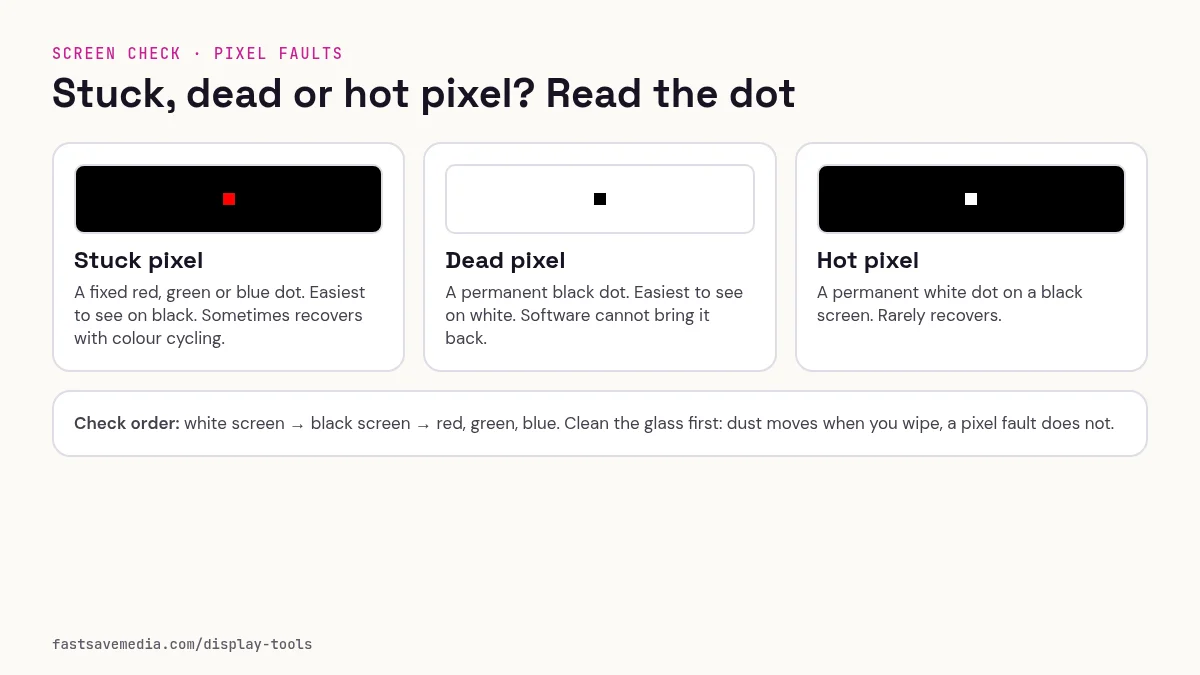
- Stuck pixel, Glows a constant color (red, green, blue, or white). The transistor is stuck in one state. Not reliably repairable with color cycling.
- Dead pixel, Permanently black/dark. The transistor has completely failed. Not fixable via software, requires panel replacement.
When to Use This Tool
- You've identified a stuck pixel using white, black, or colored screen tests
- The pixel glows a constant color, it's not dead (black)
- The pixel appeared recently (a recent appearance does not establish whether cycling will help)
What Causes Stuck Pixels?
Manufacturing Defects
- Transistor irregularity, Microscopic imperfections in the thin-film transistor (TFT) can cause a sub-pixel to get stuck in one voltage state.
- Liquid crystal alignment, The liquid crystals may get physically stuck in one orientation, blocking or allowing light for that sub-pixel.
Usage Factors
- Static images for extended periods, Displaying the same image for very long periods can temporarily stick a pixel (more common on older panels).
- Temperature extremes, Very cold or hot environments can affect liquid crystal behavior and cause temporary pixel sticking.
- Physical pressure, Pressing on the screen can cause temporary or permanent pixel issues.
Age & Wear
- Panel aging, As displays age, the likelihood of pixel defects increases. This test cannot determine a defect's age or cause.
How to Read Your Results
✅ Stuck pixel is gone after cycling, The point appears to respond again, but this does not establish the cause or a lasting repair. If it returns, check the manufacturer's pixel-defect policy.
⚠️ Stuck pixel is less visible but not gone, Partial improvement. Stop and compare solid fills at normal brightness. Do not increase speed or duration to pursue an uncertain repair.
❌ Stuck pixel remains unchanged, The pixel may be dead (transistor fully failed) rather than stuck, or it's been stuck too long for software fixing. Do not apply pressure to the panel; check the manufacturer's pixel-defect warranty instead. If it's a dead pixel, only panel replacement can fix it.
Step-by-Step Stuck Pixel Fix Guide
Method 1: Color Cycling (This Tool)
- Click Start Test, read the photosensitivity notice and pick a speed (3 seconds is the slower default; the fastest option is 0.5 seconds).
- Click I Understand, Start Test. Press Esc, click or tap to stop at any time.
- Use only as a brief visual check, following the display manufacturer's guidance.
- Exit and check the pixel using white, black, and colored screens.
- If unchanged, stop and check the manufacturer's pixel-defect warranty rather than repeating prolonged sessions.
Avoid pressure and tapping
Do not press, rub or tap a defective pixel. Pressure can damage the panel. If the defect persists, check the manufacturer's pixel-defect warranty or contact an authorised repair service.
When to Give Up
- If the pixel remains stuck after 3+ days of cycling attempts, it's likely a permanent defect. Check your manufacturer's dead/stuck pixel warranty policy, many will replace panels with more than a certain number of defective pixels.
Reference results
✅ Fixed, Pixel Responds Normally
After running the color cycle, check your screen with white, black, red, green, and blue solid colors. The previously stuck pixel should now change color correctly with the background, it's no longer stuck on a single color.
⚠️ Partially Fixed, Still Faint
The stuck pixel is less bright or less noticeable than before, but still faintly visible on some colors. Reduced visibility does not establish transistor recovery. Compare solid fills and check the manufacturer's pixel-defect policy.
❌ Not Fixed, Pixel Unchanged
The pixel still glows the same constant color regardless of what the screen displays. If it remains coloured and unchanged, stop the test and check the manufacturer's pixel-defect warranty. If it's completely black (dead pixel), software cycling cannot fix it.
Quick reference: stuck, dead or hot pixel?
| Type | What you see | Where it shows | Can colour cycling help? |
|---|---|---|---|
| Stuck pixel | A dot fixed on red, green or blue (or a mix such as yellow or cyan) | Most visible on black and on the colours that do not contain it | Sometimes worth a brief try; results are not guaranteed |
| Dead pixel | A dot that stays dark | Most visible on white | No. Software cannot revive a failed pixel |
| Hot pixel | A dot that stays bright white | Most visible on black | Unlikely; treat as a panel defect |
| Dust or debris | A soft dark speck that may look different from an angle | Most visible on white | No. Clean the screen first and recheck |
Safe operation rules
- Photosensitivity: do not run the cycle if you or anyone watching has epilepsy or is sensitive to flashing light. Keep the slow 3-second default unless you have a reason to change it.
- Keep sessions short: a few minutes is enough to see whether the dot reacts. Long bright sessions add wear on OLED screens and are not a reliable fix.
- Never press or tap the screen: pressing on a pixel can crack layers, spread the damage to nearby pixels or leave pressure marks, and it may affect a warranty claim.
- Look away if uncomfortable: press Esc, click or tap to stop at once.
Step-by-step troubleshooting
- Wipe the screen gently with a dry microfiber cloth so dust is not mistaken for a pixel.
- Check the dot on white, black, red, green and blue to classify it with the table above.
- If it is a stuck pixel, run a short colour cycle at the default speed, then stop.
- Recheck on solid colours. Note whether the dot changed.
- If nothing changed, photograph the dot on a solid colour, note its position and count any other defects.
- Compare your count with the pixel-defect policy for your model and contact the seller while the return window is open.