
What Is Pixel Response Time?
Measures how quickly pixels change state (ms). Slow response causes ghosting.
Panel Comparison
- TN, 1-2ms, best for competitive gaming
- IPS, 4-5ms, balanced
- VA, 8-15ms, worst smearing
- OLED, 0.1ms, best overall
Why Should You Run This Test?
If you see ghosting, motion blur, or trailing shadows behind fast-moving objects in games or videos, your monitor's pixel response time may be too slow. This test rapidly flashes between black and white so you can observe how quickly your pixels transition.
Common Symptoms
- Ghost trails behind moving text when scrolling web pages
- Motion blur during fast-paced games (FPS, racing)
- Smearing or "black smear" in dark scenes (common on VA panels)
- Mouse cursor leaves a visible trail when moved quickly
What Causes Slow Pixel Response?
Panel Technology
- VA panels (8-15ms), VA panels have the slowest response, especially in dark-to-light transitions. "Black smear" is a known VA issue where dark pixels trail noticeably.
- IPS panels (4-5ms), Good balance between response time and color accuracy. Some affordable IPS monitors have slower transitions.
- TN panels (1-2ms), Fastest LCD response time but worst viewing angles and colors.
- OLED (0.1ms), Near-instant response with no ghosting, but susceptible to burn-in.
Other Factors
- Overdrive set too high, Monitor overdrive/response time settings that are too aggressive cause "inverse ghosting" (bright corona artifacts).
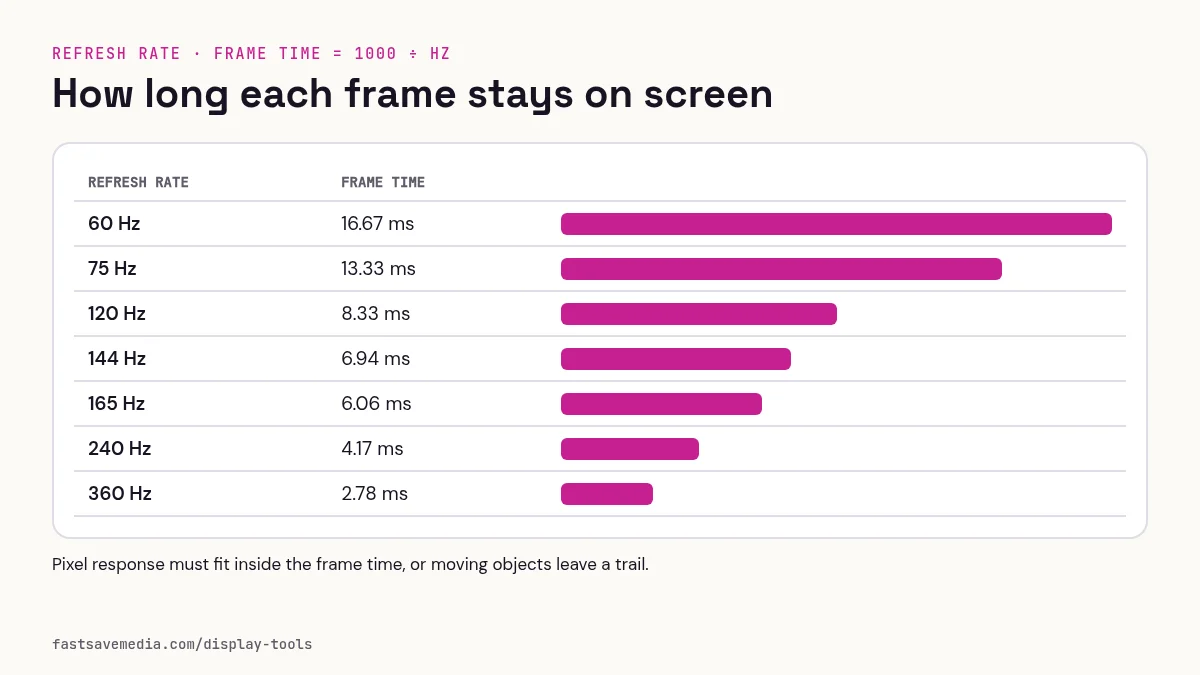
- Low refresh rate, 60Hz shows more perceived blur than 144Hz even with the same response time.
- VSync or frame buffering, These add input lag that can feel like slow response.
How to Read Your Results
✅ Clean, instant transitions, no trails, Your monitor has fast pixel response. Suitable for gaming and fast content. You should see sharp black and white flashes with no ghost images between them.
⚠️ Slight gray shadows during transitions, Your monitor has moderate response time. You may notice ghosting in fast games. Try adjusting your monitor's overdrive/response time setting (usually in the OSD menu).
❌ Visible smearing or bright halos between transitions, Your monitor has slow response (likely VA panel) or overdrive is set incorrectly. If you see bright "corona" artifacts, your overdrive is too aggressive, turn it down.
How to Reduce Ghosting
- Adjust monitor overdrive, Most gaming monitors have an "Overdrive" or "Response Time" setting in the OSD (Off/Low/Medium/High). Start at Medium, too high causes inverse ghosting.
- Increase refresh rate, If your monitor supports 120Hz/144Hz, enable it in Display Settings. Higher refresh rate reduces perceived motion blur.
- Enable motion blur reduction, Some monitors have backlight strobing features (ULMB, ELMB, DyAc) that reduce perceived motion blur at the cost of brightness.
- Disable frame buffering, Turn off VSync, triple buffering, or other frame smoothing that adds latency.
- Consider panel upgrade, If ghosting is severe and persistent, your panel type (VA) may be the limitation. IPS or OLED panels offer faster transitions.
Reference results
✅ Good Result, Clean Transitions
You should see sharp, instant flashes between pure black and pure white with no visible gray "in-between" frames. Each flash is crisp and distinct, like a strobe light. No trails, smears, or ghost images between transitions.
⚠️ Moderate Ghosting
During transitions, you can see a brief gray or shadow frame, the previous state lingers for a moment before fully transitioning. This is most noticeable in the black-to-white direction and may indicate visible transition artifacts; this browser check cannot measure response time in milliseconds.
❌ Severe Ghosting or Inverse Ghosting
Transitions show visible smearing, the screen appears to "swipe" between states rather than instantly switching. Alternatively, you may see bright white halos or corona around the edges during transitions, which indicates overdrive is set too high (inverse ghosting).
Quick reference
| What you see | Name | Usual adjustment |
|---|---|---|
| Dark smear trailing a moving object | Ghosting from slow transitions | Raise overdrive one step |
| Bright or coloured halo behind the object | Overshoot (inverse ghosting) | Lower overdrive one step |
| Whole object looks soft while it moves | Sample-and-hold blur | Higher refresh rate or a motion-blur reduction mode |
| Stutter or uneven movement | Frame pacing or refresh mismatch | Check refresh rate setting and close heavy background tabs |
Step-by-step troubleshooting
- Confirm the display runs at its highest refresh rate in OS settings.
- Start the moving shapes and watch at your normal distance.
- Step through each overdrive setting on the monitor menu, comparing trails each time.
- Pick the setting with the least trail and no bright halo.