
| Part of the source PDF | In the merged file? | Note |
|---|---|---|
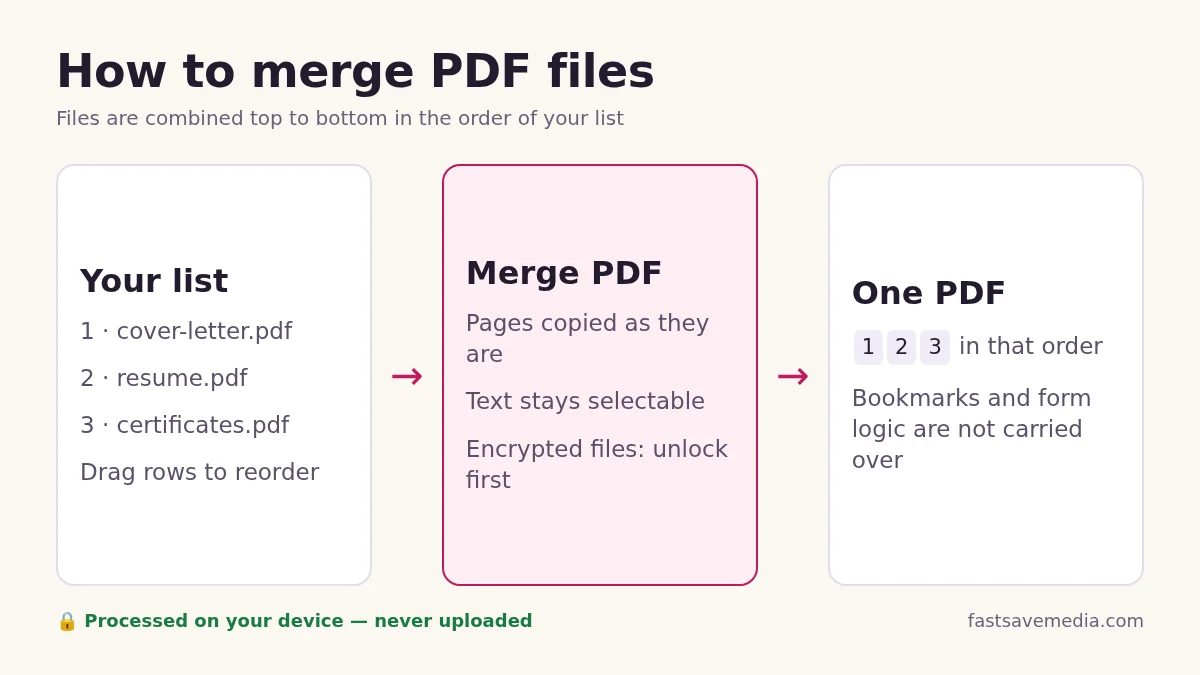
| Page content, text and images | Yes | Pages are copied as they are, so text stays selectable |
| Page order | Yes, your list order | Drag rows, use the arrows or Alt+↑/↓, or sort A–Z with numbers in order |
| Pages you leave out | No | Type a range such as 1-3, 5 or 4-end in a file's Pages box |
| Title, author and app details | Cleared by default | Untick Remove metadata in Advanced options to keep the tool's producer tag instead |
| Links inside a page | Yes | Travel with their page |
| Bookmarks / outline | No | The merged file is a new document |
| Form-field logic | No | Fill forms before merging |
| Password-protected files | Refused | Unlock them first with Unlock PDF |
How to merge PDF files in 3 steps
- Add your PDFs. Drop two or more files into the box or press Select PDF files. Once files are in, the box shrinks to a small Add more PDFs bar so the list stays in view.
- Set the order and pages. Drag rows, use the arrow buttons, or sort A–Z. Type a page range such as
1-3, 5next to any file to keep only those pages; leave it blank to keep every page. - Merge and download. Press Merge PDF. The combined file is built in your browser and downloads straight away; the Download button stays available if you need it again.
Choose only the pages you need from each file
Each file in the list has a Pages box. It accepts single pages, ranges and the word end, and the counter above the list shows how many pages the merged file will have before you press Merge.
| You type | Pages kept |
|---|---|
(blank) or all | 1 to 10 |
1-3 | 1, 2, 3 |
1-3, 7 | 1, 2, 3, 7 |
4-end | 4 to 10 |
12 | Nothing: the box turns red and Merge stays disabled until you fix it |
Pages always keep their original order inside a file, so 5, 2 gives page 2 then page 5. To reorder pages inside one document, use Organize PDF after merging.
Sorting numbered files correctly
Scanners and phones often name files scan1.pdf, scan2.pdf … scan10.pdf. A plain alphabetical sort puts scan10 straight after scan1. The A–Z button here sorts numbers by value, so 2 comes before 10. Z–A does the opposite and Reverse flips your current order, which is handy when a stack was scanned back to front.
Common merge problems and fixes
| Problem | Cause | Fix |
|---|---|---|
| "This PDF is password-protected" | The file is encrypted, so its pages cannot be copied safely | Remove the password you know with Unlock PDF, then add it again |
| A file is skipped as damaged | The file is not a valid PDF or was cut off during download | Open it in a PDF viewer and re-save or re-export it |
| "Added twice?" label on a row | Two files share the same name and size | Remove the copy with the × button if it was a mistake |
| Merged file is too big for an upload portal | Scanned pages are large images | Run the result through Compress PDF; note this turns pages into images |
| Some pages are sideways | The source scan was rotated | Fix them with Rotate PDF before or after merging |
| Form fields stop working | Form logic is not carried into the new document | Fill and flatten forms before merging |
What happens to your files
The merge uses the open-source pdf-lib library running in this page. Each page is copied into a new PDF as it is, so text stays selectable and searchable and image quality does not change. The files are read from your device and never sent to a server. Bookmarks, the document outline and form logic from the source files are not carried over, because the result is a new document.
Under Advanced options you can rename the output and choose whether to clear the title, author and app details stored in the file. Clearing them is on by default, which is useful when the sources came from different people.
Typical document bundles
- Applications and visa forms: portals that accept one upload, such as cover letter, ID scan and supporting statements.
- Job applications: cover letter, CV and certificates, in the order the recruiter asked for.
- Coursework: title page, chapters and appendices into one submission.
- Invoices and receipts: a month of receipts into a single file for your accountant; use page ranges to skip blank back pages.
Before you send the merged PDF
- Open the result and check the page order and the page count shown above the list.
- Check the recipient's size limit; compress only if needed, and keep the uncompressed copy.
- If you need page numbers or a watermark across the whole bundle, add them afterwards with Watermark PDF.