
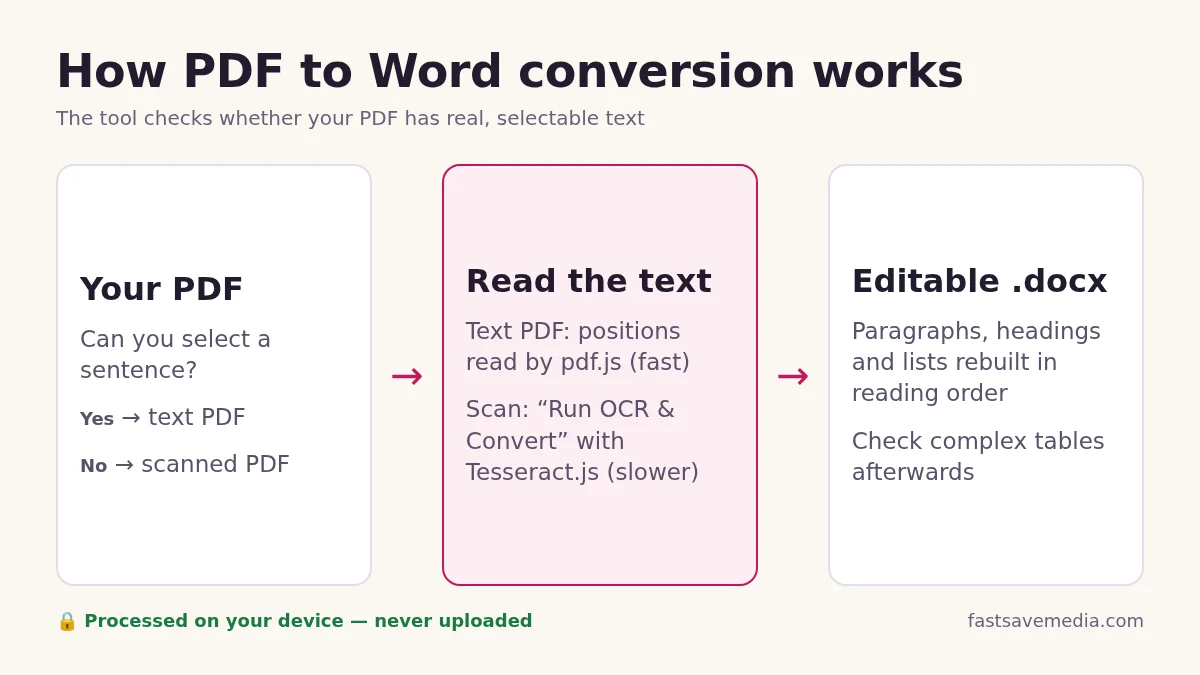
| Your PDF | How text is read | Speed | Result in Word |
|---|---|---|---|
| Exported from Word, Docs or LaTeX (text selectable) | Text positions read by pdf.js | Fast | Editable paragraphs, headings and lists |
| Scanned or photographed (text not selectable) | On-device OCR with Tesseract.js | Slower | Editable text; check for misread characters |
| Multi-column or table-heavy | Columns detected from positions | Fast | May need tidying; use PDF to Excel for tables |
How to Convert PDF to Word in 3 Steps
- Upload your PDF.
- Pick a layout mode. "Flowing text" is best when you plan to edit; "Preserve line breaks" keeps the document closer to the original printed layout.
- Download editable DOCX. Save the converted Word file and open it in Microsoft Word, Google Docs, Apple Pages or LibreOffice, fully editable.
Who Uses Our PDF to Word Converter
Students & Academics
Quote PDF research papers, edit thesis chapters originally exported as PDF, and reformat lecture notes into your own template.
Business Professionals
Reuse paragraphs from a PDF proposal in a new client deck, or update a vendor contract you only have as PDF.
Government & Public Sector
Re-edit released PDFs into the Word templates that ministry, council and procurement portals require for submissions.
Translators & Editors
Open a foreign-language PDF, drop it into Word, and translate inline using Track Changes, no retyping required.
Content & SEO Teams
Reformat downloaded PDF whitepapers into HTML-ready Word drafts that flow straight into your CMS.
What to know before you use PDF to Word
Most converter round-ups grade tools on a single metric, "did the words come out?" That misses the three things that actually matter :
- Where the file goes. Server-side converters upload your PDF to a third party.
- Reading order vs. visual order. A PDF stores text positions, not paragraphs. A two-column academic paper can convert to perfectly readable Word, or to scrambled column-jumping nonsense, depending on whether the converter reconstructs reading order from coordinates.
- OCR honesty. A scanned PDF has no text in it, only images of text. Most "free PDF to Word" tools quietly run OCR in the cloud and bill you for it later.
If a converter doesn't address all three, the headline "free" almost always means you're paying with your file.
Guide to Converting PDF to Word
Why people convert PDF to Word in the first place
A PDF was designed to be the final destination of a document, a pinned-down snapshot of a Word file, an InDesign layout or a printed page. The trouble is, in real work, "final" rarely is. A research paper needs a quote pulled into a literature review. A vendor sends a contract as PDF and asks for redlines. A government office releases its forms as PDF and demands the response in Word. In every case, the question stops being "can I read this?" and becomes "can I edit this?"
Converting PDF to Word is the bridge between read-only delivery formats and editable working documents. Done well, it saves hours of retyping and preserves every reference, citation and footnote. Done poorly, by an engine that scrambles reading order or quietly uploads your file, it costs you privacy and formatting.
How a PDF actually stores its text
Most people assume a PDF stores paragraphs, like a Word document. It doesn't. A PDF stores text runs: short strings of characters with X-Y coordinates and a font. There is no concept of "paragraph", "heading", "line", or even "reading order", only positions on a page. A converter has to reconstruct all of that from raw geometry.
This is why two converters fed the exact same PDF can produce wildly different Word files. The engine that wins is the one that does the geometry well: grouping text runs into lines by Y-band, lines into paragraphs by spacing, and paragraphs into reading order by column detection. Our converter implements all three, which is why it handles academic two-column PDFs, footnoted legal documents and bulleted slide decks without scrambling them into nonsense.
Text-based PDFs vs. scanned PDFs
There are two completely different kinds of PDF, and only one converts directly to editable Word:
- Text-based PDFs were exported from Word, Google Docs, LaTeX, InDesign or a "Print to PDF" command. They contain real text characters under the hood. Our tool converts these directly into editable Word with high fidelity.
- Scanned PDFs were created by a scanner, phone camera or fax machine. The "page" is just an image. There is no text to extract, only pixels. Running this through any plain converter produces a Word file containing the image of text, not the text itself. This tool handles that in one step: when it detects a scanned page it prompts you to "Run OCR & Convert," which extracts a real text layer locally, via Tesseract.js, with no upload, before building the Word document.
Built-in OCR: one pass instead of two
Direct answer: yes, OCR is built into this converter, you do not need a separate tool for scanned PDFs. When a page has no extractable text, the converter flags it and offers "Run OCR & Convert." Choosing it runs Tesseract.js locally against a greyscale copy of each flagged page, recognizes the characters, and feeds the recognized text straight into the same paragraph-building pipeline used for text-based PDFs, so a scanned contract and a native Word export end up going through the same reading-order and heading-detection logic.
This matters because a two-step workflow (OCR on one site, conversion on another) means uploading your file twice, to two different servers, and manually re-checking that the OCR output still lines up page-for-page with the original. A single combined pass avoids both problems: one upload boundary (none, since everything is local), and one consistent document structure from source PDF to final .docx.
Flowing text vs. preserving the layout
Two reasonable people can want two opposite things from a converter. The lawyer wants the Word file to look exactly like the PDF for redlining. The marketer wants flowing text they can drop into a new template. Our converter exposes both via the "Layout mode" option:
- Flowing text ignores PDF line breaks and lets Word reflow paragraphs naturally. This is what you want if you'll be editing heavily, fixing a sentence won't break the line breaks below it.
What the converter does behind the scenes
When you click Convert, the tool: (1) parses your PDF with Mozilla's open-source pdf.js engine, (2) extracts every text run with its X-Y coordinates, font size and font style, (3) sorts runs into reading order using Y-banding and X-position, (4) groups runs into paragraphs using inter-line spacing thresholds, (5) flags larger or bolder runs as headings, (6) emits a clean Word XML document inside a .docx ZIP package, and (7) hands you the file.
The reading-order problem (and why other converters fail it)
Most academic and journal PDFs use two columns. A naive converter reads top-to-bottom across the full page width, which produces output like "The conclusion shows that → moreover, the data → method described in section 2 → was significant (p<0.05)", sentences chopped together from both columns. Our converter detects column breaks by clustering X-coordinates and reading each column in full before moving to the next. The same logic handles footnoted layouts, multi-callout newsletters and three-up legal templates.
Privacy: the part no one talks about
Some converters process documents on remote servers. Review a service’s privacy policy before submitting sensitive files. This tool processes the document locally; its libraries may still require network downloads.
Browser-based conversion sidesteps the issue entirely. The conversion happens in JavaScript / WebAssembly, on your CPU. This is the same model that web-based password managers use, and it's the only model that gives you real privacy for sensitive documents.
The full PDF-to-Word workflow professionals actually use
- If the PDF is scanned, just choose "Run OCR & Convert" when prompted, no separate OCR tool or extra upload needed.
- If the PDF is password-protected, unlock it with Unlock PDF.
- If you only need a portion, split it with Split PDF so you don't convert 300 pages when you need 6.
- Convert to Word here. Pick "Flowing text" for editing, "Preserve line breaks" for legal/forms.
- If you later need to send the edited version back as PDF, re-export with Word to PDF.
- If the resulting PDF is too big to email, run it through PDF Compressor.
Tips for the cleanest possible conversion
- Start from a real PDF (exported from Word/Docs), not a scan.
- Use the page range if you only need 6 pages of a 600-page document, faster and easier to clean up.
- Pick the right layout mode: flowing text for editing, preserve line breaks for forms and legal.
- For heavy tables, use PDF to Excel first, then paste the table back into your Word document.
- Set "Default font" to Calibri for maximum cross-platform compatibility in Microsoft Word.