
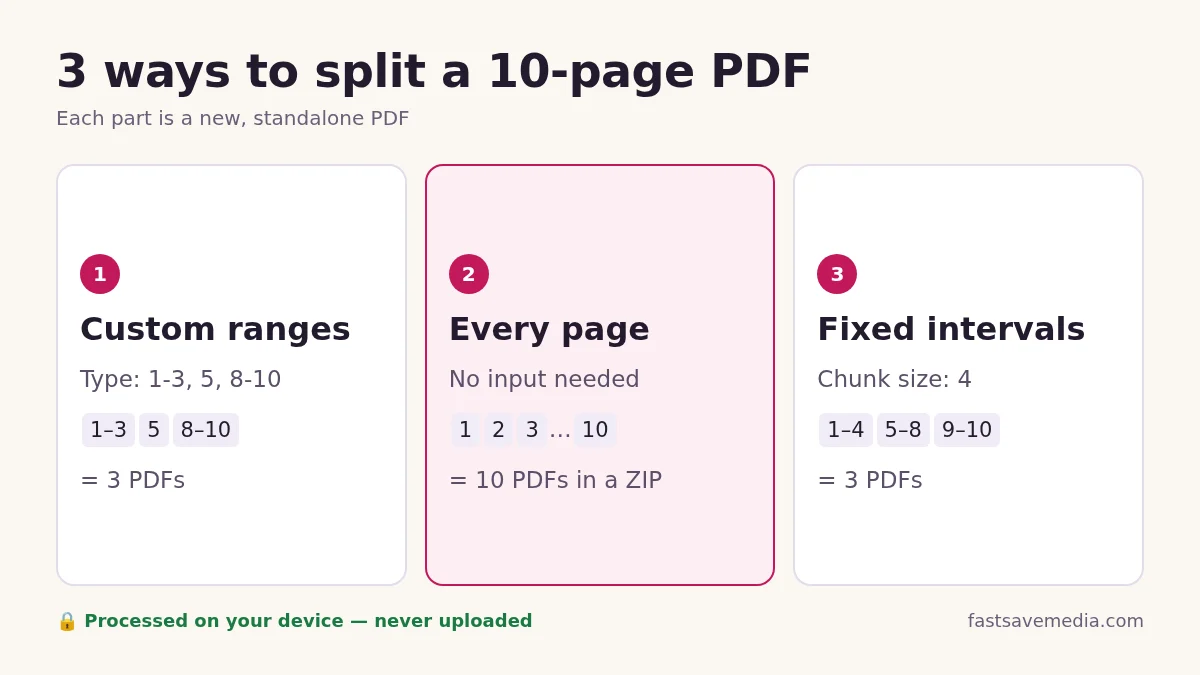
| Mode | What you enter | Output |
|---|---|---|
| Custom ranges | 1-3, 5, 8-10 | 3 PDFs: pages 1–3, page 5, pages 8–10 |
| Extract every page | Nothing | 10 single-page PDFs in a ZIP |
| Fixed intervals | Chunk size, e.g. 4 | 3 PDFs: pages 1–4, 5–8, 9–10 |
| Custom ranges, one PDF | 2, 5, 9 | 1 PDF with pages 2, 5 and 9 |
| Open-ended range | 4-end | Pages 4–10 (end is the last page) |
| Odd pages preset | Odd pages button | Pages 1, 3, 5, 7, 9 |
| All but first preset | All but first button | Pages 2–10, cover removed |
How to split a PDF in 3 steps
- Open your PDF. Drop it into the box or choose it from your device. The file is read inside your browser and is not uploaded.
- Choose what to keep. Type page ranges such as
1-3, 5, 8-end, use a quick-select button (odd, even, first, last, all but first), or click page thumbnails to add or skip them. You can also save every page on its own or cut the file into chunks of N pages. - Pick the output and download. Choose one PDF per range (downloaded as a ZIP) or all selected pages together in one PDF. Files are named after your original, for example
contract-01-p1-3.pdf.
Which split mode fits your problem
| You want to | Use | Type or set |
|---|---|---|
| Send one page from a long bundle | Custom ranges, one PDF | 7 |
| Remove a cover page | Custom ranges, one PDF | All but first (2-end) |
| Pull pages 2, 5 and 9 into one file | Custom ranges, one PDF | 2, 5, 9 |
| Separate chapters into their own files | Custom ranges, one PDF per range | 1-12, 13-30, 31-end |
| One invoice per page | Extract every page | Nothing to type |
| Meet a portal limit of 10 pages per upload | Fixed intervals | Chunk size 10 |
How to write page ranges
- Separate items with commas. Spaces are ignored, so
1 - 3 , 5equals1-3,5. - A single number keeps one page. A hyphenated pair keeps every page between them, both included.
endmeans the last page, so4-endworks for a file of any length.- A reversed range such as
10-8is read as 8 to 10. - Pages beyond the end of the file, page 0 or letters show an error under the box instead of being guessed, so you never download the wrong pages.
- In one-PDF mode, pages are written in the order you type them, so
5, 1-4moves page 5 to the front.
Split a scanned duplex document into fronts and backs
A scanner feeding both sides of each sheet produces fronts on odd pages and backs on even pages. Press Odd pages, choose All selected pages in one PDF and split to get the fronts in one file; repeat with Even pages for the backs. If the backs came out upside down, fix them afterwards with Rotate PDF.
Is splitting a PDF safe for private documents?
Bank statements, payslips, medical reports and tax forms are often split before being sent to one recipient. This tool reads and writes the pages with JavaScript running on your own device, so the document is not sent to a server for processing. Once the page has loaded, splitting continues to work if your connection drops. Each output is a new file built from copies of the original pages; the original file is not changed.
What stays and what changes in the split files
- Page content, text and images are copied as they are, so text stays selectable and searchable.
- Links inside a page travel with that page.
- The document outline from the original is not copied into the parts.
- Password-protected PDFs are refused with a message; remove the password you know with Unlock PDF first.
- Splitting reduces page count, not page weight. If one part is still too big for an email or upload limit, run it through Compress PDF, which turns pages into images.
Split, merge or organize?
Use Split PDF when you need fewer pages or several smaller files. Use Merge PDF to join separate files, and Organize PDF when you need to drag pages into a new order, delete or insert pages while seeing the whole document.
Checklist before you send split files
- Open one output and confirm the first and last page are the ones you expected.
- Check each file against the recipient's size or page limit.
- Change the filename prefix in Advanced options if the recipient needs a naming pattern.