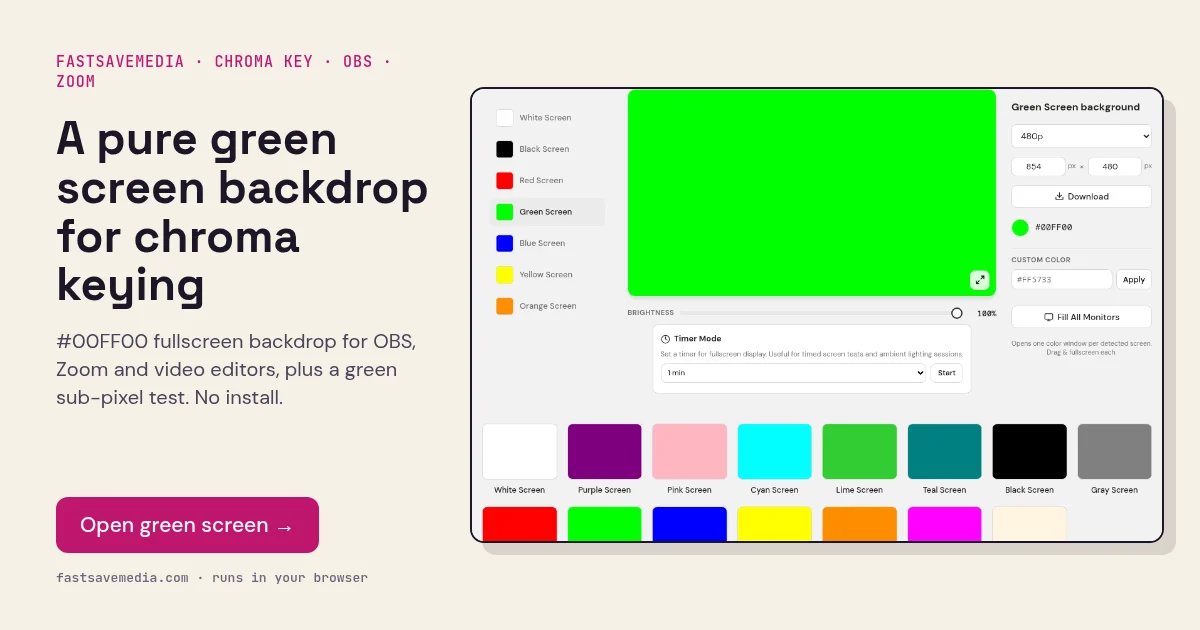
What the green screen is used for
Chroma keying removes one colour from video and replaces it with another background. Pure green is the standard key colour because camera sensors record green with the most detail and least noise, and it is rarely present in skin tones or clothing.
A bright display makes a handy key backdrop for desk shots, product close-ups and stream overlays: it is perfectly even and needs no lighting of its own. The main enemy is reflection, so angle the screen or camera to avoid glare. The same fill isolates green sub-pixels for hardware checks.
Green Screen technical data
| Hex | #00FF00 |
|---|---|
| RGB | 0, 255, 0 |
| Sub-pixels lit | green |
| Best for detecting | Key background for OBS, Zoom, Premiere, DaVinci Resolve; dead green sub-pixels |
| Panel types | Any monitor, tablet or TV used as backdrop |
| Test conditions | Brightness 100%; subject lit separately; avoid reflections on the screen |
How to run the green screen test
- Place the display behind the subject and set brightness to maximum.
- Light the subject with a separate lamp so their shadow does not fall on the screen.
- Angle the camera slightly off the screen surface to avoid glare hotspots.
- In OBS add a Chroma Key filter (green), or key it in your editor.
Practical uses for the Green Screen
| Task | What to look for or do | Setup |
|---|---|---|
| Chroma key backdrop | Clean, even green with no hotspots | Brightness 100%, camera angled off the screen surface |
| Lighting evenness | Glare lines or dim corners in the camera preview | Light the subject with a separate lamp, not the screen |
| Spill control | Green fringe on hair or edges | Keep the subject a little away from the screen |
| Green sub-pixel check | Dark dots mean failed green elements | Close scan in normal room light |