In this article
Introduction
A video that will not play, freezes halfway, shows green blocks or plays sound with a black screen is usually not "broken" beyond repair. In most cases the file is incomplete, uses a codec your device cannot decode, or is simply too large for the app you are sending it to. This guide explains how to tell which problem you have and how to fix it, starting with the simplest checks.
Common Causes of a Video That Will Not Play
1. Incomplete download or transfer
If a copy, upload or download stopped early, the end of the file is missing. Many MP4 files store their index (the "moov atom") at the end, so a cut-off file may not open at all. Check that the file size matches the original and copy it again from the source if you can.
2. Unsupported codec or container
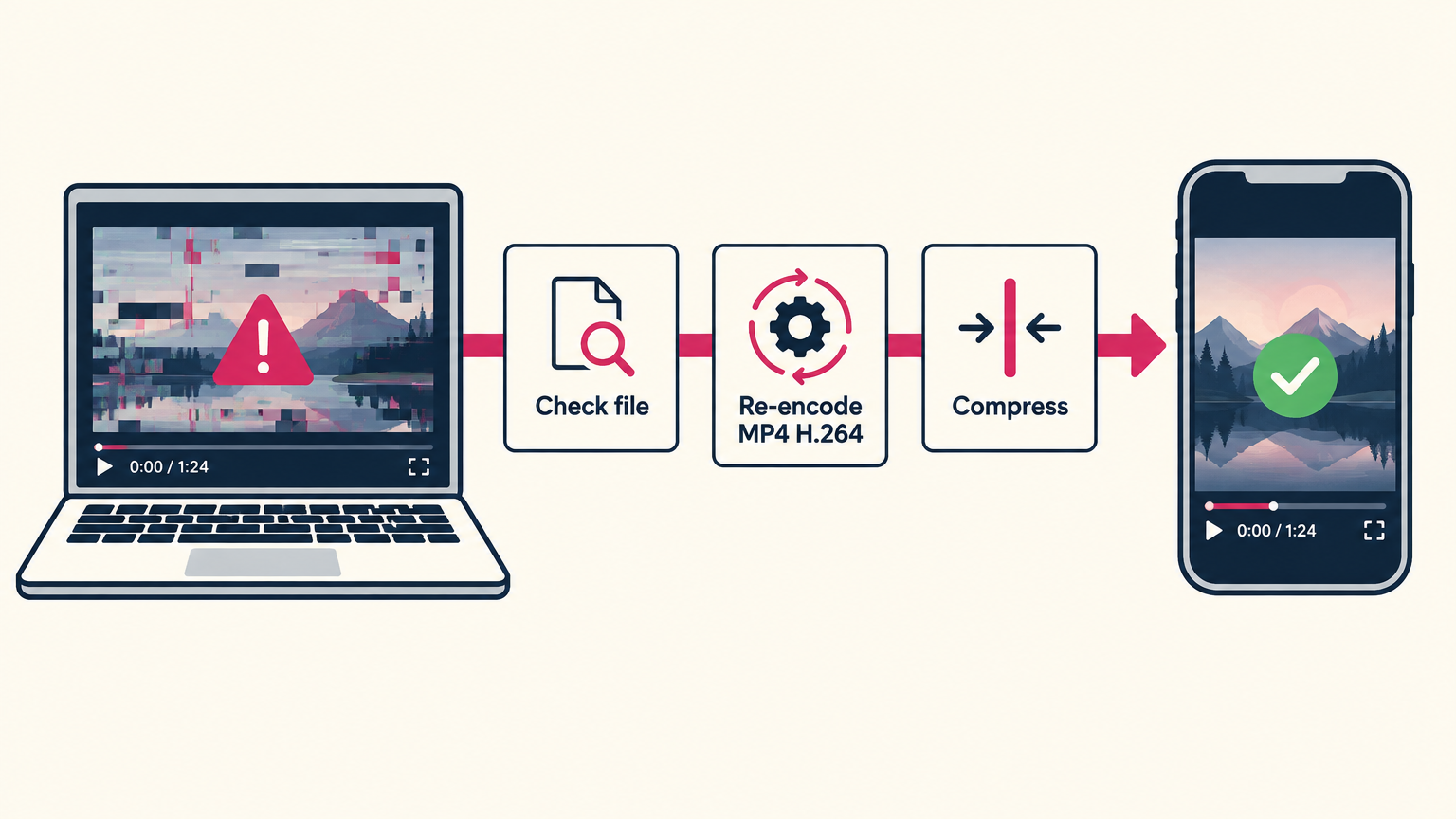
MP4, MOV, MKV and WebM are containers; the video inside can use H.264, HEVC (H.265), VP9, AV1 or others. Older phones, some Windows PCs without the HEVC extension, and many web apps cannot decode HEVC or AV1. The file is fine, but the player cannot read it. Re-encoding to MP4 with H.264 video and AAC audio is the most widely supported combination.
3. File too large for the app or device
Messaging apps, email and upload forms reject or silently fail on large files, and older devices struggle with high bitrates or 4K at 60 fps. Lowering resolution and bitrate usually solves both problems.
4. Damaged storage or interrupted recording
A camera or phone that lost power while recording, or a failing SD card, can leave a file that no tool can fully recover. Re-encoding may save the readable part, but missing data cannot be recreated.
Step-by-Step Fix
- Try another player. Open the file in VLC or a different browser. If it plays there, the file is healthy and the problem is codec support.
- Check the file size. Compare it with the original. A much smaller file was likely cut off during transfer; copy it again.
- Re-encode to MP4 (H.264). Load the video into the FastSaveMedia Video Compressor. It decodes the file in your browser and writes a fresh MP4, which often fixes playback errors caused by an odd codec or a misplaced index.
- Reduce size if needed. In the same compressor, pick a lower resolution or quality preset so the result fits WhatsApp, email or upload limits.
- Test the new file on the device or app that failed before.
The compressor runs on your device, so your video is not uploaded to a server. Very long or 4K files can take a while in a browser, especially on phones.
When Repair Will Not Work
If the file will not open in any player and the compressor cannot read it, the data needed to decode it is probably missing. Recover the original from cloud backup, the sending device or the camera card instead. Desktop tools such as FFmpeg can sometimes rebuild an index from a healthy reference clip recorded on the same device, but results vary.
How to Prevent Corrupted Videos
- Wait for uploads, downloads and copies to finish before closing apps or ejecting cards.
- Keep enough battery and storage free while recording.
- Record in "Most Compatible" (H.264) on iPhone if you share clips with older devices.
- Keep a backup of important originals.
Conclusion
Most "corrupted" videos are incomplete copies, unsupported codecs or files that are too large. Try another player, re-copy the file, then re-encode and shrink it with the FastSaveMedia Video Compressor to get a standard MP4 that plays almost everywhere.
Frequently asked questions
Can a corrupted video be fixed for free?
Why does my video play sound but show a black screen?
Is my video uploaded when I use the compressor?
Can every damaged video be recovered?
Nayeem — Software Developer of fastsavemedia.com
Built FastSaveMedia to provide free, privacy-first web utilities and browser tools running entirely in modern web browsers without server uploads. Passionate about web performance, audio signal processing, and accessible digital tools.
LinkedIn profile