In this article
- Vertical short video is 9:16, typically exported at 1080×1920 pixels.
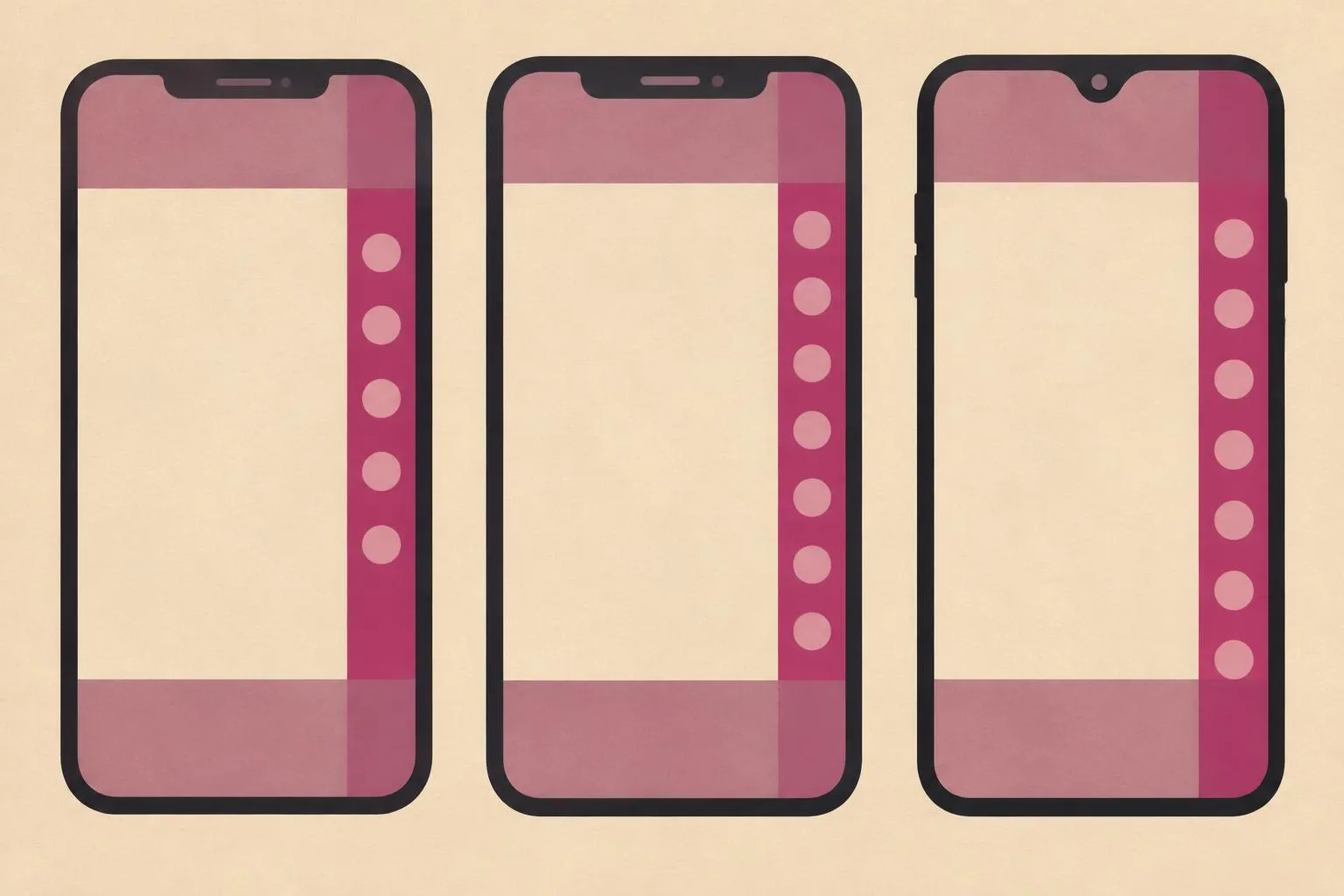
- Each app covers parts of the frame with captions, usernames and buttons, mostly the bottom band and the right edge.
- Keep faces, text and logos in the central area and check each platform's overlay before you post.
- Overlays change with app updates, so re-check templates rather than trusting old pixel numbers.
A Reel, Short or TikTok can look perfect in your editor and then lose its caption under the like button. The fix is to plan around each app's safe zone: the part of the vertical frame that stays visible when the interface is drawn on top.
This guide explains where the overlays usually sit, how to set up a single edit that works on all three apps, and how to check it with the free Social Media Safe Zone Checker, which runs in your browser without uploading your image.
1. Start with the right canvas
Edit at 9:16. A 1080×1920 canvas is the common export size for all three platforms. If your source is horizontal, crop it to vertical first with the Video Cropper rather than letting the app zoom it.
2. Where each app covers your video
| Area | What usually sits there | Keep out |
|---|---|---|
| Bottom band | Username, caption, audio label, progress bar | Subtitles, calls to action, product names |
| Right edge | Like, comment, share, remix buttons | Faces, logos, numbers |
| Top band | Status bar, tabs or search | Titles and hooks |
| Centre | Clear on all apps | Put the important content here |
The exact size of each band differs between Instagram, YouTube and TikTok and changes with updates, which is why a live overlay check beats memorised numbers.
3. One edit for three platforms
- Place faces and key action in the centre.
- Put on-screen text slightly above the vertical middle, not at the very bottom.
- Keep logos away from the right edge.
- Export one 1080×1920 master, then compress if needed with the Video Compressor.
4. Check it before you post
Export a still frame of your busiest moment, open the Safe Zone Checker, choose each platform and see what the interface would cover. Move anything that falls under an overlay. Cover images and thumbnails need the same check, because the grid and profile view crop differently from the full-screen player.
5. Common framing mistakes
- Burned-in subtitles placed at the very bottom, where the caption covers them.
- Logos in the bottom-right corner, under the action buttons.
- Thumbnails with text near the edges that the grid crops away.
- Uploading horizontal video and relying on auto-crop.
Frequently asked questions
What size should Reels, Shorts and TikToks be?
Where should I put subtitles on vertical video?
Are safe zones the same on every app?
Does the Safe Zone Checker upload my image?
Nayeem — Software Developer of fastsavemedia.com
Built FastSaveMedia to provide free, privacy-first web utilities. Most tools process files in your browser without server uploads; tools that use an online service explain this on their page. Focuses on web performance, audio signal processing, and accessible digital tools.
LinkedIn profile