Introduction
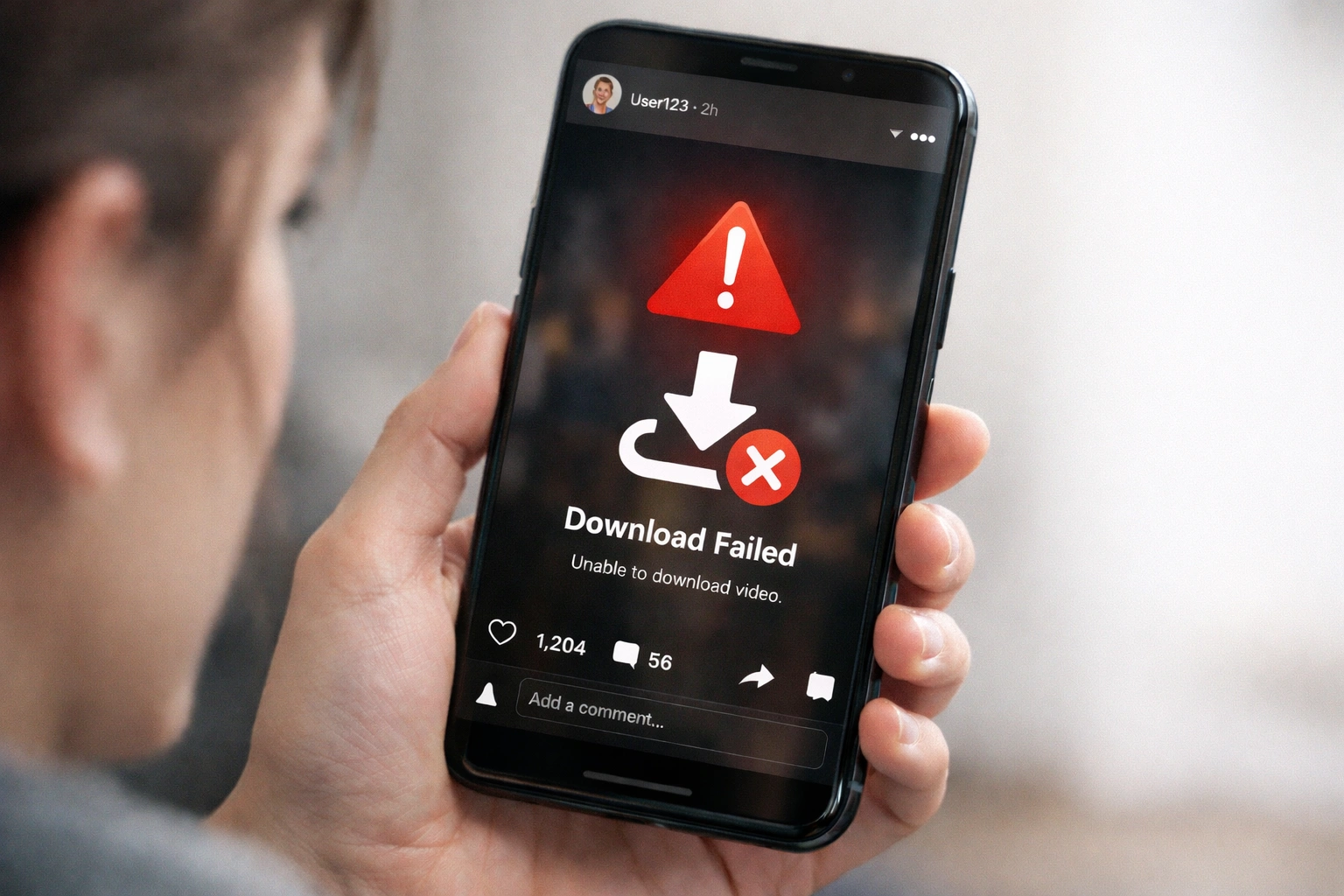
If you are trying to save an Instagram video and nothing happens — no download, no error message, no file appearing in your gallery — you are not alone. Instagram video not downloading is one of the most frequently reported problems across Android, iPhone, and desktop platforms in 2026.
The frustration is understandable. You find a video you want to keep — maybe it is a tutorial, a recipe, a motivational clip, or a memorable reel from a friend — and when you try to save it, the process simply fails. The screen may freeze, the link might not respond, or the file downloads as a corrupted or empty file.
This issue can stem from a wide range of causes, including Instagram app restrictions, account privacy settings, broken or expired links, outdated browsers, interfering VPN connections, or incorrect download methods. In this comprehensive guide, we explain every reason why Instagram videos fail to download and walk you through proven, step-by-step fixes that work on both mobile and desktop devices.
Whether you are trying to download Instagram reels, feed videos, IGTV clips, or public posts, this article covers everything you need to diagnose the problem and resolve it quickly and safely.
Why Instagram Videos Are Not Downloading
Instagram does not provide a built-in download button for videos posted by other users. This is a deliberate design decision aimed at protecting creator content. As a result, users rely on web browsers, third-party tools, or workarounds to save videos — and these methods can fail due to several technical and non-technical factors.
Understanding the root cause is the first step toward fixing the problem. Below are the most common reasons your Instagram video download is not working.
1. Private Instagram Account
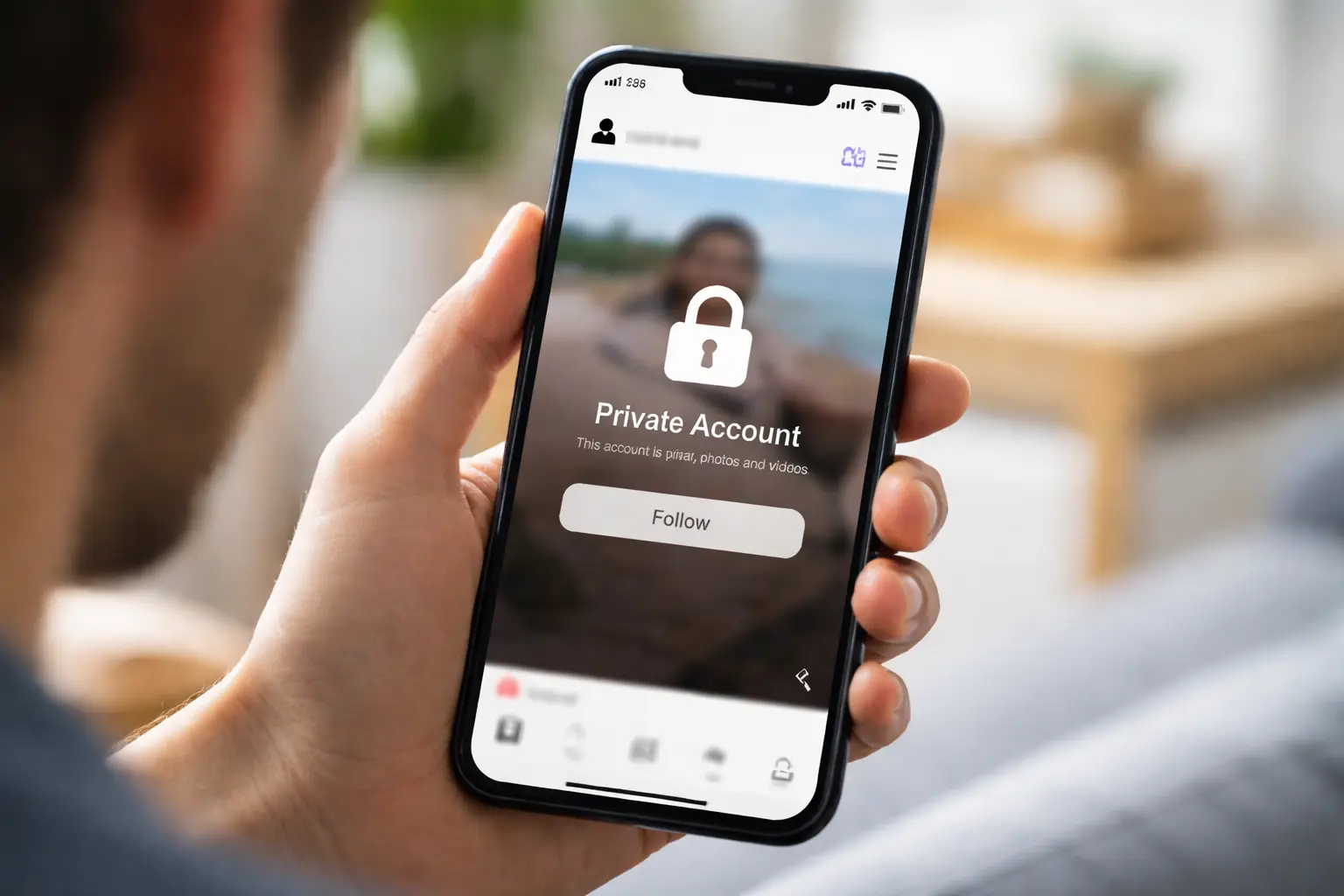
If the video belongs to a private Instagram account, it cannot be downloaded by external tools or browser-based downloaders. Instagram restricts access to private content, meaning only approved followers can view it within the app itself. Most third-party downloaders only work with publicly available posts and reels. If you need to save a video from a private account, you must either request the creator to share it directly or ask them to temporarily make the post public.
2. Incorrect or Incomplete Video Link
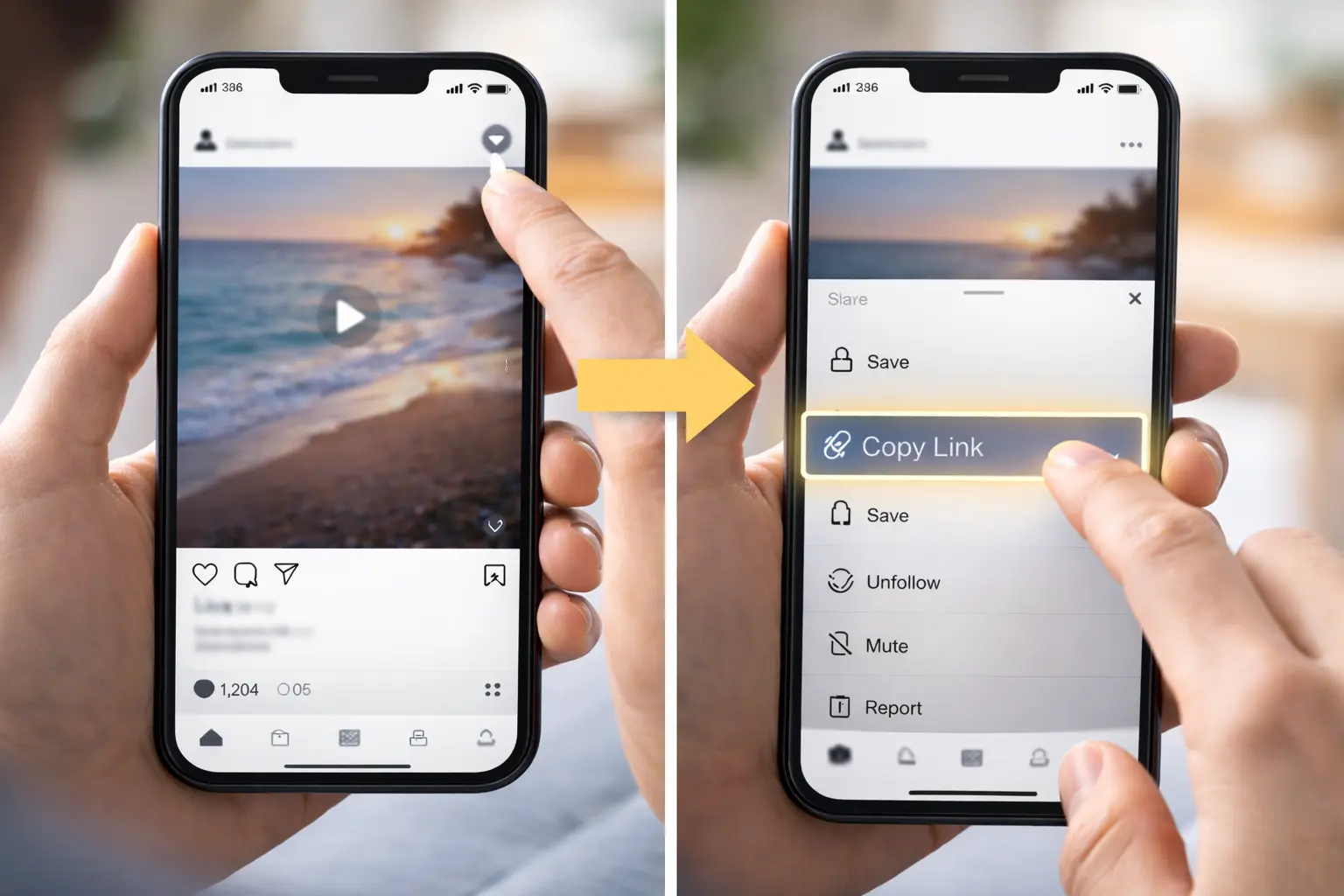
One common reason downloads fail is that users copy the wrong URL. Many people grab a shortened link, a story preview link, a search result link, or a link opened inside the Instagram in-app browser — none of which point directly to the actual video file. To download successfully, copy the full post or reel URL from your browser’s address bar or use the built-in "Copy Link" option on the specific Instagram post.
3. Expired or Removed Video
If the original creator has deleted the video, set it to archive, or if Instagram has removed it for violating community guidelines, the content will no longer be accessible. Attempting to download a video that no longer exists on Instagram's servers will always result in failure. There is no workaround for this — once content is removed, it cannot be retrieved through any external tool.
4. Browser or App Cache Issues
Outdated or corrupted cache files are a surprisingly common cause of download problems. When your browser or the Instagram app stores old data, it can interfere with new requests, causing pages to load incorrectly or media fetching to break entirely. This issue is especially prevalent on mobile browsers and in-app browsers that do not clear cache automatically. Regularly clearing your cache ensures your browser communicates fresh requests to Instagram's servers.
5. Regional or Network Restrictions
Certain networks — particularly public Wi-Fi hotspots, corporate networks, and school or university connections — actively restrict media downloads to conserve bandwidth or enforce usage policies. If you are on such a network, Instagram video requests may be silently blocked. Additionally, some countries or ISPs impose restrictions on specific types of media content. Switching to a different network, such as your mobile data connection, can help determine if this is the cause.
6. Outdated Browser or App Version
Running an outdated version of your browser or the Instagram app can lead to compatibility issues. Instagram regularly updates its platform, and older software versions may not support newer content delivery methods. Always ensure your browser (Chrome, Firefox, Safari, or Edge) and the Instagram app are updated to their latest versions.
7. JavaScript or Ad Blocker Interference
Some browser extensions, particularly aggressive ad blockers or script blockers, can interfere with the download process by blocking the scripts that online downloaders rely on. If you notice that a download tool interface loads but the actual download never starts, try disabling your browser extensions temporarily.
How to Fix Instagram Video Download Problems
Now that you understand what causes the issue, here are actionable fixes you can apply right away. These solutions are listed in order of effectiveness and ease.
Fix 1: Use a Reliable Instagram Video Downloader
The simplest and most effective solution is using a trusted, purpose-built online tool designed specifically for downloading Instagram videos. These tools handle the technical complexity behind the scenes — extracting the direct video URL from Instagram's servers and delivering it to your device.
👉 Try our free tool here: Instagram Video Downloader
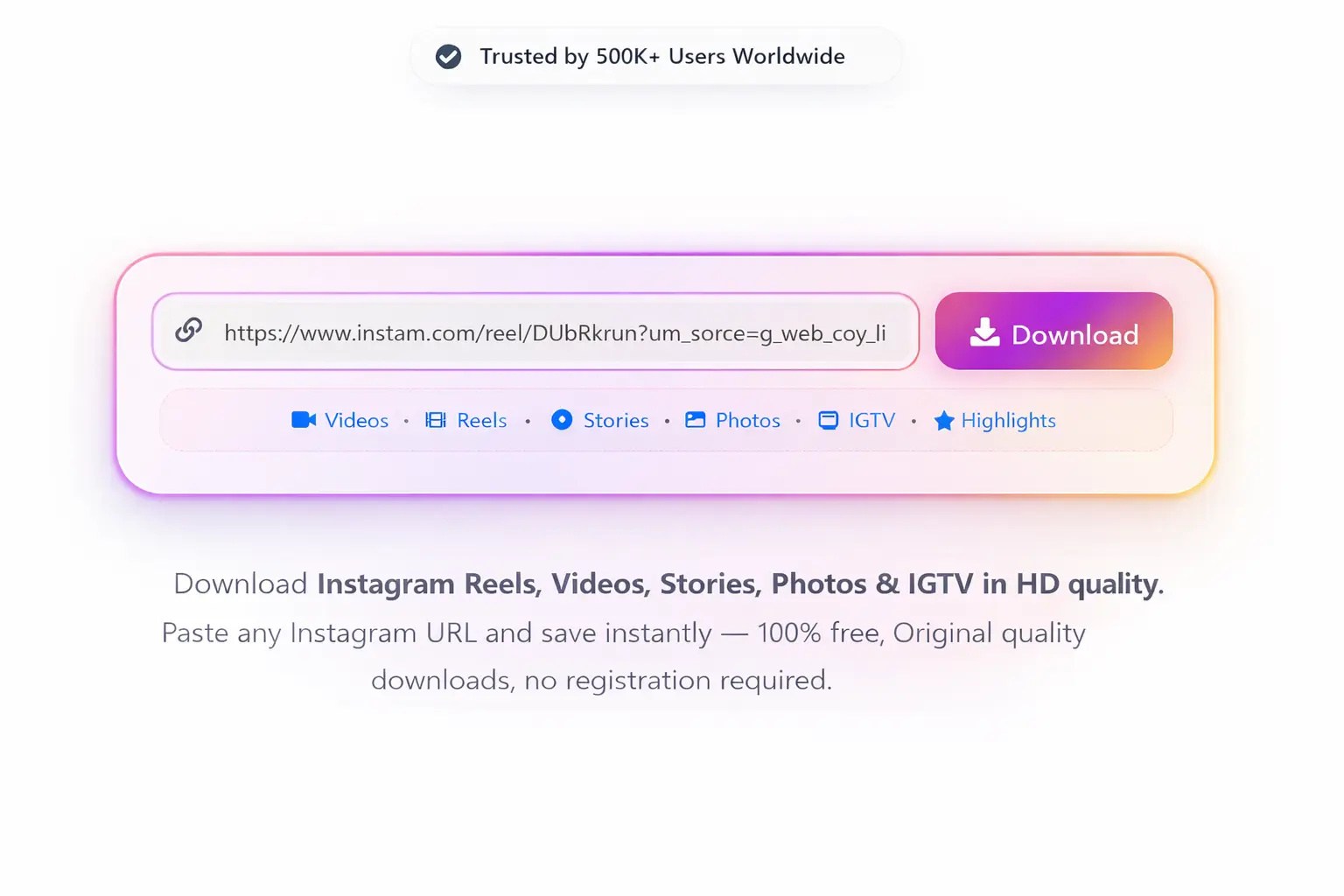
This tool works directly in your browser without requiring any app installation, login credentials, or personal data. It supports reels, feed videos, and all public Instagram posts. Simply paste the video link, click download, and save the file to your device.
Fix 2: Verify the Video Is from a Public Account
Before attempting any download, confirm that the Instagram account hosting the video is set to public. You can check this by opening the profile in a private or incognito browser window without logging in. If you can see the posts and videos, the account is public and the content should be downloadable. If the profile shows a lock icon or a message saying "This account is private," the video cannot be accessed by external tools.
Fix 3: Clear Your Browser Cache and Cookies
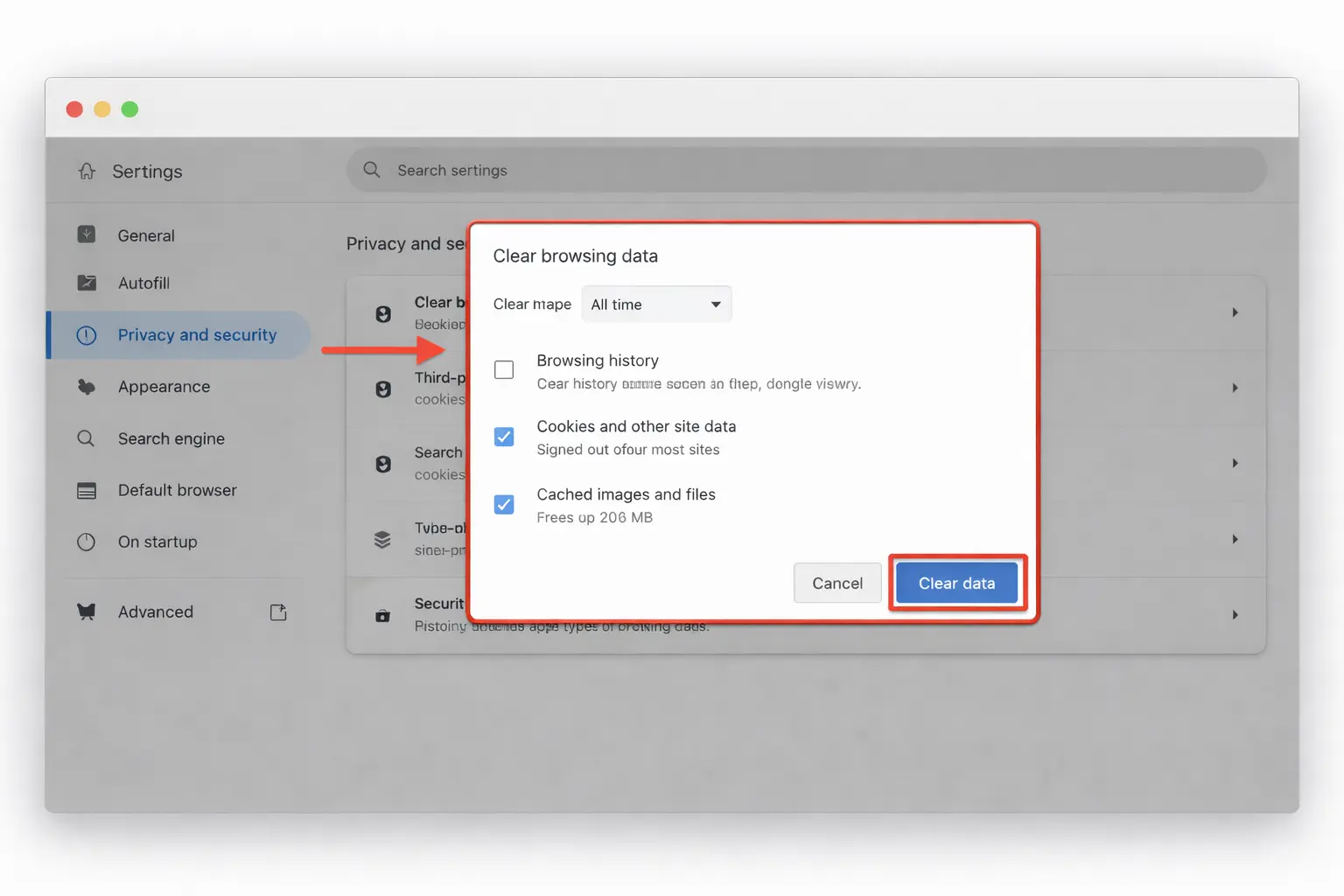
Clearing your browser's cache and cookies is a quick fix that resolves a large number of loading and fetching errors. On most browsers, you can do this through Settings > Privacy > Clear Browsing Data. Select "Cached images and files" and "Cookies and other site data," then clear. After clearing, restart your browser and try the download again.
Fix 4: Switch Browsers or Devices
If a video refuses to download on your current setup, try switching to a different browser or device. For example, if you are using Safari on iPhone, try Chrome on a desktop computer. Chrome and Firefox on desktop generally offer the most reliable download experience. Mobile in-app browsers (such as opening links inside the Instagram app) are known to cause issues and should be avoided for downloads.
Fix 5: Disable VPN or Proxy Connections
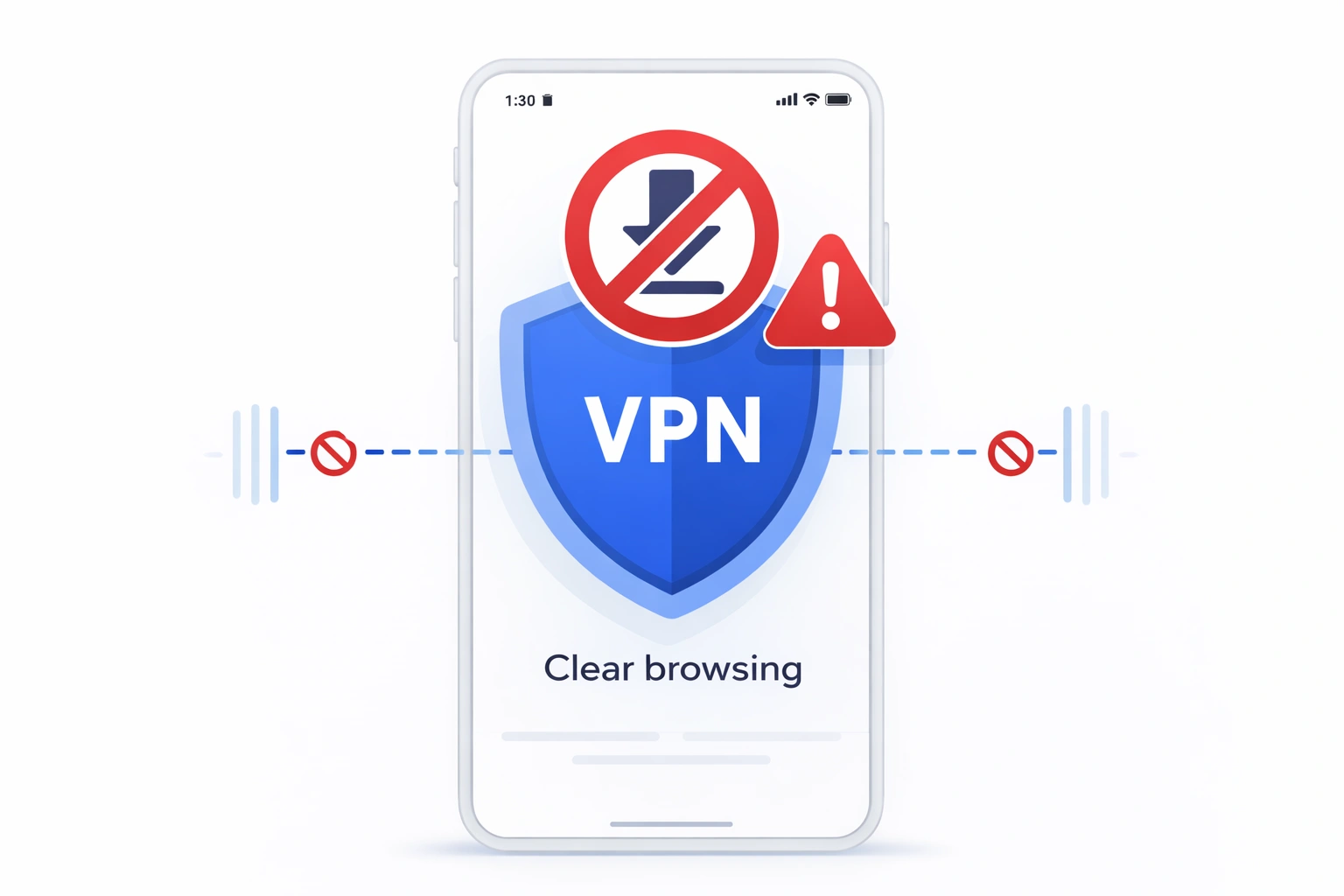
VPN services and proxy connections can interfere with Instagram media requests by routing your traffic through servers that Instagram may flag or throttle. If you have a VPN active, turn it off temporarily and attempt the download again using your direct internet connection. This resolves the issue more often than most users expect.
Fix 6: Check Your Internet Connection
A weak or unstable internet connection can cause downloads to start and then fail midway. Ensure you have a strong, stable connection before attempting to download large video files. If you are on Wi-Fi, try moving closer to the router or switching to a wired connection for more stability.
Related Instagram Issues You Should Read
If you frequently encounter Instagram errors or want to optimize your experience with the platform, these related guides provide valuable insights and solutions:
- How the Instagram Algorithm Affects Video Visibility and Reach
- Instagram Video Editing Guide for Better Engagement and Performance
Legal & Copyright Considerations
It is important to understand that all Instagram videos are protected by copyright laws. The person who created and uploaded the video holds the rights to that content. Downloading, redistributing, or repurposing videos without the creator's explicit permission may violate intellectual property laws, Instagram's Terms of Service, and platform community guidelines.
We strongly recommend reviewing our DMCA & Copyright Policy before downloading any media from Instagram or any other platform.
Only download videos that you own, that you have been given explicit permission to use, or that are legally available for personal reference and offline viewing. Never re-upload or monetize content that belongs to another creator without proper authorization.
Still not working? Try our free Instagram Video Downloader.Need a fast and reliable way to save Instagram videos, reels, or posts to your device?
Use Free Instagram Video DownloaderQuick Checklist to Fix Instagram Video Download Issues
- Confirm the account is public
- Copy the correct post URL
- Clear browser cache
- Disable VPN or ad blockers
- Use a reliable Instagram video downloader
Conclusion
If your Instagram videos are not downloading, the issue almost always comes down to one of a few common causes: private account restrictions, incorrect or expired links, browser cache problems, network interference, or outdated software. The good news is that every one of these problems has a straightforward fix.
Start by verifying the video is from a public account and that you have the correct URL. Clear your browser cache, disable any VPN connections, and use a reliable, dedicated Instagram video downloader for the best results. If one method does not work, try switching browsers or devices.
By following the steps outlined in this guide and respecting copyright rules, you can enjoy a smooth, safe, and hassle-free video downloading experience. Bookmark this page so you can return to it whenever you encounter download issues in the future.
Frequently Asked Questions
Why won’t Instagram let me download videos?
Instagram does not provide a built-in download option for videos posted by other users. This is intentional to protect creator content. To save videos, you must use a compatible online tool that works with publicly available posts.
Can I download Instagram reels?
Yes, public Instagram reels can be downloaded using a reliable online Instagram video downloader. Private reels cannot be accessed or downloaded through external tools.
Why does the download start but then fail?
Downloads may fail due to unstable internet connections, expired links, private account restrictions, browser cache issues, VPN interference, or blocked scripts from browser extensions.
Is it safe to use online Instagram downloaders?
Reputable tools that do not require login credentials or account access are generally safe. Always use HTTPS-secured websites and avoid tools that request your Instagram password.
Can I download videos from Instagram stories?
Public Instagram stories can sometimes be downloaded while they are active within 24 hours. Expired stories cannot be retrieved unless saved as highlights on a public profile.