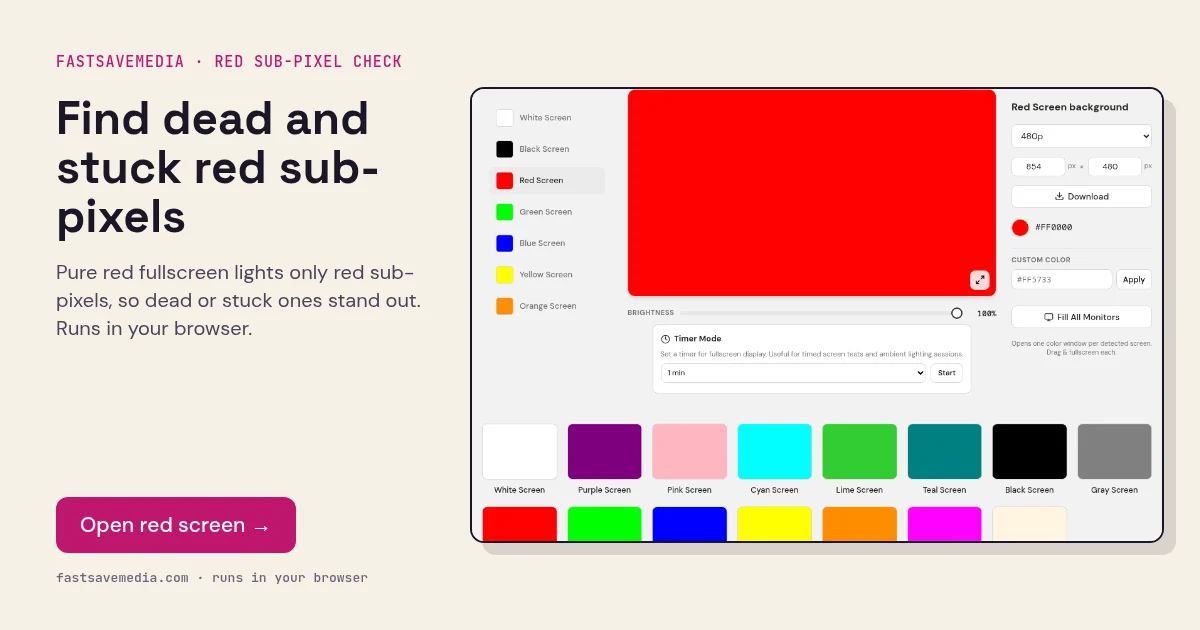

What the red screen is used for
Every pixel on a screen is made of separate red, green and blue sub-pixels. A pure red fill switches the red ones fully on and the other two fully off, so the panel is tested one colour channel at a time.
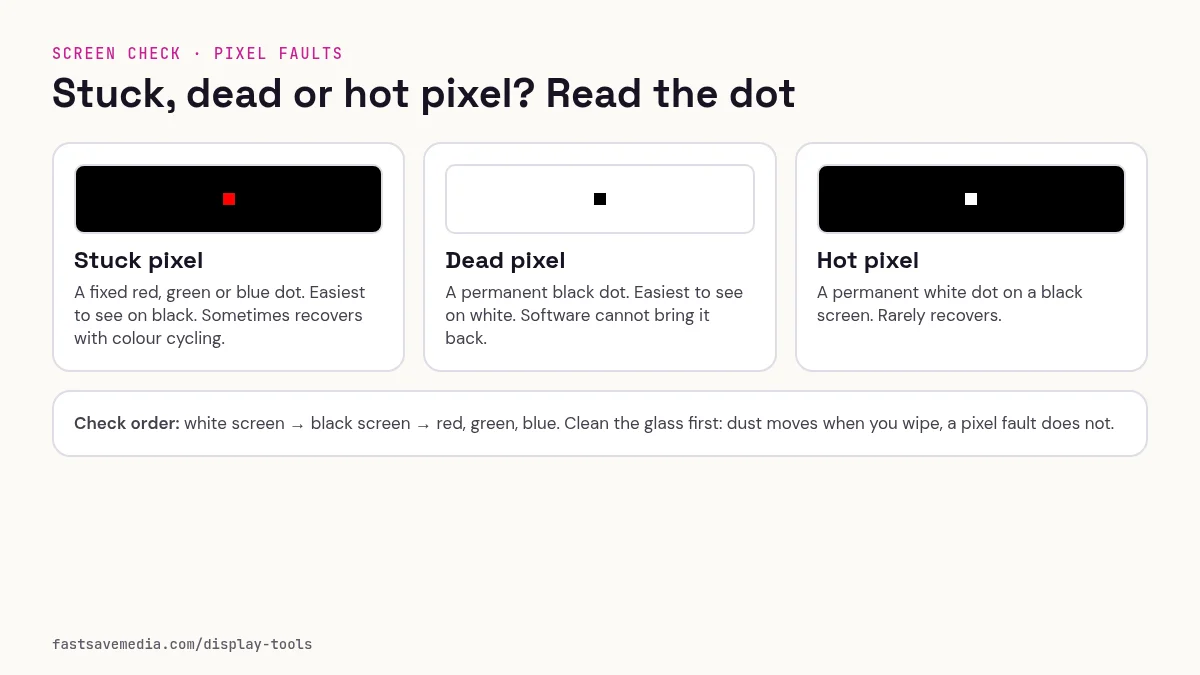
That isolation is what makes red useful for diagnosis. A pixel that looked slightly off on white can be traced to a specific failed sub-pixel: dark on red means the red element is dead, while any other colour showing means a green or blue element is stuck on. Red also shows whether the red channel's brightness is even across the panel.
Red Screen technical data
| Hex | #FF0000 |
|---|---|
| RGB | 255, 0, 0 |
| Sub-pixels lit | red |
| Best for detecting | Dead red sub-pixels, stuck green/blue sub-pixels, red channel uniformity |
| Panel types | All LCD and OLED panels |
| Test conditions | Normal or dim room; brightness 100% |
How to run the red screen test
- Clean the screen and set brightness to 100%.
- Press fullscreen and scan the panel section by section from close range.
- Mark any black dot (dead red) or coloured dot (stuck green or blue).
- Check the same spot on the green and blue screens to confirm the failed channel.
Practical uses for the Red Screen
| Task | What to look for or do | Setup |
|---|---|---|
| Red sub-pixel check | Dark dot means a dead red element; coloured dot means stuck green or blue | Brightness 100%, close scan |
| Night-vision friendly light | Dim red light disturbs dark adaptation less than white | Lowest brightness that lets you see, room lights off |
| Darkroom-style safelight | General low light only | Not a certified safelight; check your paper's requirements first |
| Evening ambient light | Low, warm light without blue | Low brightness |