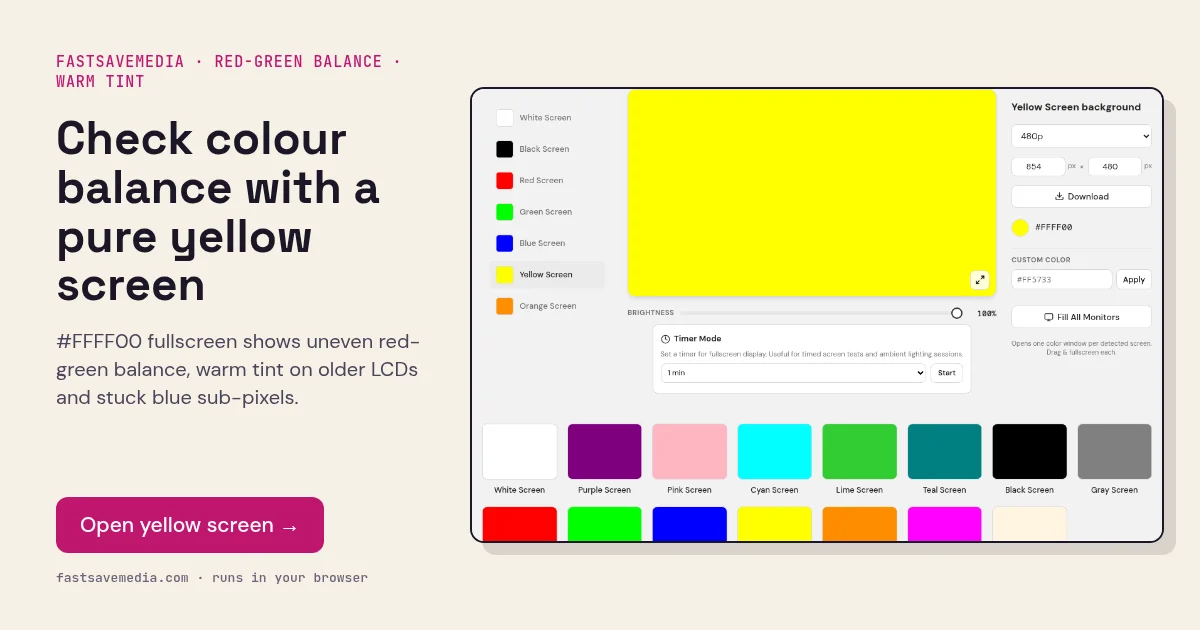
What the yellow screen is used for
Yellow is made by mixing full red and full green, so it is a direct test of how evenly those two channels are balanced across the screen. The eye is very sensitive to yellow hue shifts: a few percent too much green looks lime, too much red looks orange.
Older LCD panels and some budget laptops develop a warm or greenish cast as backlights and colour filters age, and yellow makes that drift obvious when you compare the centre with the edges. With blue switched off, a stray blue point is also easy to spot.
Yellow Screen technical data
| Hex | #FFFF00 |
|---|---|
| RGB | 255, 255, 0 |
| Sub-pixels lit | red, green |
| Best for detecting | Red/green balance, warm or greenish tint, ageing LCD, stuck blue sub-pixels |
| Panel types | LCD, IPS, TN, older laptops |
| Test conditions | Neutral room light; night light off; brightness 80-100% |
How to run the yellow screen test
- Turn off night light, warm colour profiles and eye-comfort modes.
- Press fullscreen and compare the centre with each corner.
- Note any area that looks greenish, orange or brownish.
- Look for single blue dots, which indicate stuck blue sub-pixels.
Practical uses for the Yellow Screen
| Task | What to look for or do | Setup |
|---|---|---|
| Stuck blue sub-pixels | Red and green lit, blue off, so a blue dot stands out | Close scan, brightness 100% |
| Warm task light | Bright warm light without the blue channel | Lower brightness to taste |
| Uniformity on yellow | Greenish or orange patches show uneven channels | Fullscreen, step back |