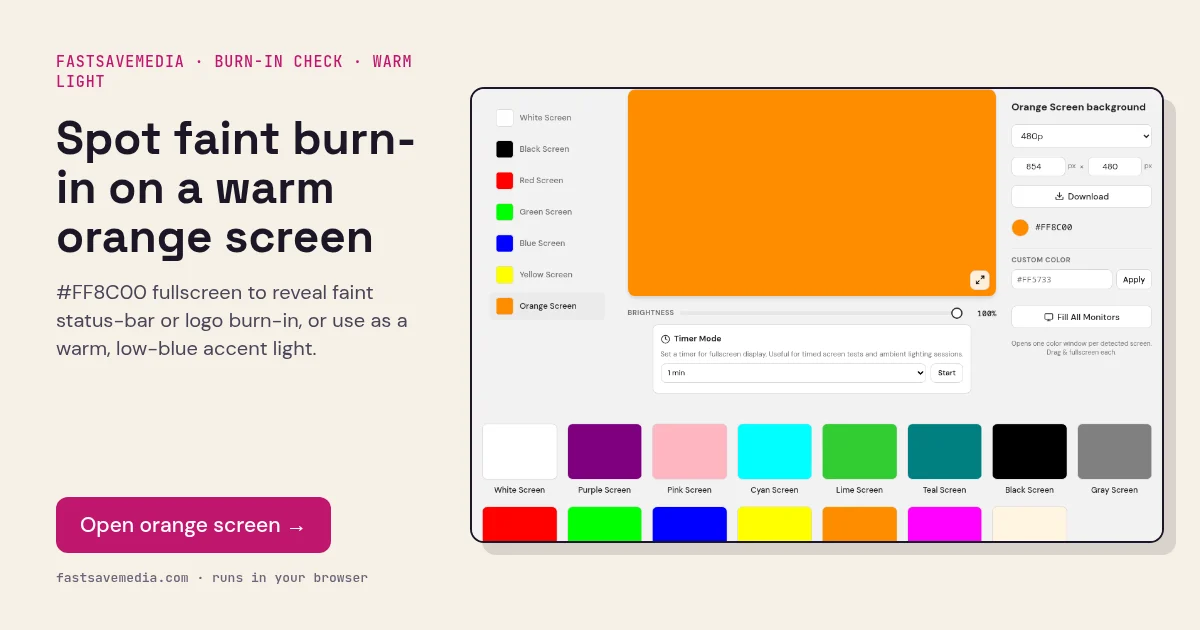
What the orange screen is used for
OLED burn-in happens when some sub-pixels wear faster than others, usually blue and green under static icons. On a warm orange fill the red channel runs fully and green partially, so areas where green has aged appear as slightly redder or darker ghosts of navigation bars, taskbars and logos.
Orange is also a practical light source. It carries almost no blue, which makes it a comfortable evening light and a warm rim or accent light for product and portrait photography when held off-camera.
Orange Screen technical data
| Hex | #FF8C00 |
|---|---|
| RGB | 255, 140, 0 |
| Sub-pixels lit | red, green |
| Best for detecting | Faint OLED burn-in ghosts, red-green balance, warm accent light |
| Panel types | OLED, AMOLED phones and TVs; any display as light |
| Test conditions | Dim room; brightness 100% for burn-in, low for ambient use |
How to run the orange screen test
- Dim the room and set brightness to 100%.
- Press fullscreen and wait 30 seconds while your eyes adapt.
- Look where static elements usually sit: status bar, navigation bar, taskbar, logos.
- For lighting, lower brightness and place the screen off-camera.
Practical uses for the Orange Screen
| Task | What to look for or do | Setup |
|---|---|---|
| Warm ambient light | Low-blue light for evenings | Low brightness, room lights dimmed |
| Two-channel check | Red plus some green; a blue dot means a stuck blue sub-pixel | Close scan |
| Warm accent wash | Sunset-style colour behind a subject | Display beside or behind you |