What the lime screen is used for
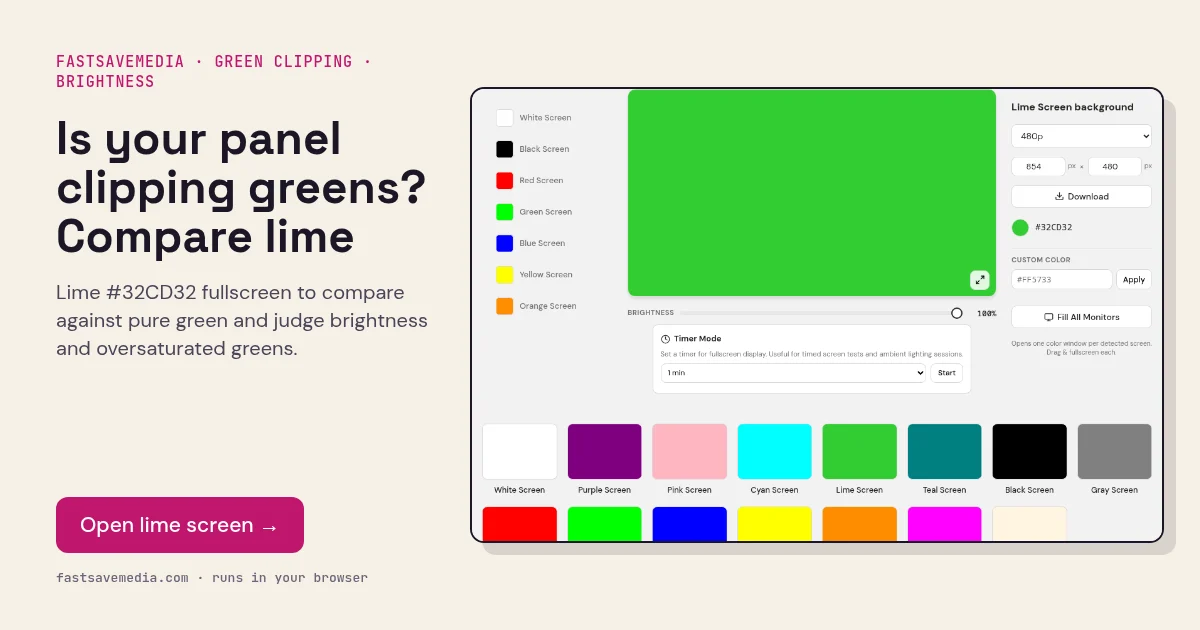
Lime is not a pure channel: it runs green at about 80% with a little red and blue mixed in. That makes it a check of how well the display reproduces vivid but non-maximum colours, which is where vivid picture modes and wide-gamut panels often oversaturate.
Because green contributes most of a screen's perceived brightness, a lime fill is also a quick comparison of how bright different panels or modes appear. Placing two devices side by side on lime shows brightness and saturation differences clearly.
Lime Screen technical data
| Hex | #32CD32 |
|---|---|
| RGB | 50, 205, 50 |
| Sub-pixels lit | red, green, blue |
| Best for detecting | Green oversaturation or clipping, perceived brightness, mid-level colour reproduction |
| Panel types | Wide-gamut monitors, phones, TVs in vivid mode |
| Test conditions | Normal room light; standard or sRGB picture mode |
How to run the lime screen test
- Set the display to its standard or sRGB picture mode.
- Press fullscreen on lime, then open the pure green screen and compare.
- Check that lime looks softer and warmer than pure green.
- Compare two devices side by side to judge relative brightness and saturation.
Practical uses for the Lime Screen
| Task | What to look for or do | Setup |
|---|---|---|
| Alternative key colour | Try it if pure green keys poorly with your camera | Same setup as the green screen |
| Accent backdrop | Bright, saturated background for product shots | Lower brightness to avoid glare |
| Two-channel check | Lime uses green with some red; spots can reveal uneven channels | Compare suspect spots on red and green |
| Visibility marker | High-visibility colour for a spare display | Any brightness |