
What the white screen is used for
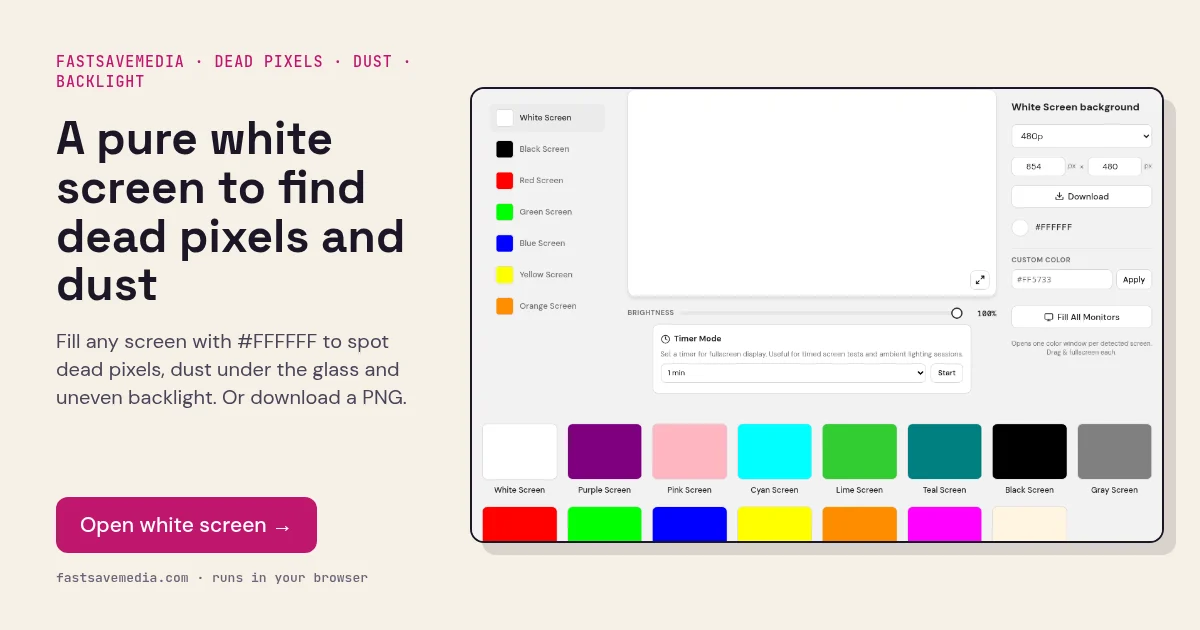
White is the only fill that drives every red, green and blue sub-pixel to its maximum at the same time, so it is the hardest test of a panel's light output. Any sub-pixel that cannot switch on shows as a dark speck, and any area where the backlight or diffuser is weaker shows as a dimmer or tinted patch.
- Backlight uniformity and vignetting: check whether the corners or edges look darker or more yellow than the centre.
- Dirty screen effect (DSE): spot cloudy patches or faint bands, common on budget LED TVs and monitors.
- Screen cleaning: white lights up every speck of dust, smudge and fingerprint while you wipe glass or matte screens.
- Soft desk light: a white screen on a second display works as a diffused fill light for video calls in a dark room.
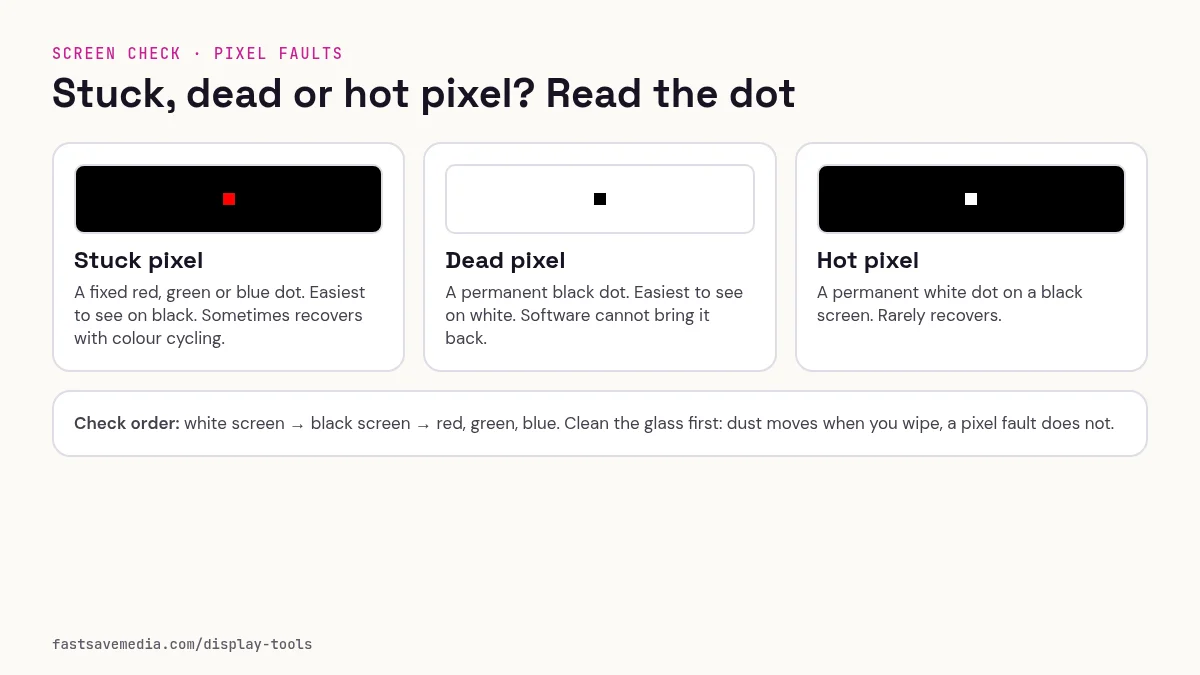
It is also the best background for telling surface dirt from internal faults. Wipe the screen first: marks that disappear were fingerprints or dust on top; grey blotches that stay put may involve internal debris, panel non-uniformity or other causes that this visual test cannot distinguish. A warm yellow edge on an LCD often means an ageing backlight or a strip of LEDs running warmer than the rest.
White Screen technical data
| Hex | #FFFFFF |
|---|---|
| RGB | 255, 255, 255 |
| Sub-pixels lit | red, green, blue |
| Best for detecting | Dead (dark) pixels, dust under the glass, dirty screen effect, yellow or pink tint, dim corners |
| Panel types | LCD, IPS, VA, OLED, mini-LED |
| Test conditions | Normal room light; brightness 100%; night light and colour filters off |
How to run the white screen test
- Wipe the screen with a dry microfiber cloth so surface dust is not mistaken for a fault, then switch off night light, True Tone or eye-comfort modes.
- Set brightness to 100% and press fullscreen.
- Step back about 1 to 1.5 metres (3 to 5 feet) and look across the whole panel for grey patches, clouding, banding or shadowed corners.
- Move in to about 15 cm (6 inches) and scan each quadrant for single black specks: sharp dots may be pixel defects and soft blurs may be debris or panel non-uniformity; compare several fills before drawing conclusions.
- Compare the left and right sides: one side looking warmer or cooler means uneven tint.
Need a second opinion? Repeat on the black screen for backlight bleed, the gray screen for dirty screen effect, and the warm white screen to check night-mode tint.
Technical note: the tool fills the screen with a solid #FFFFFF colour drawn by the browser, not a compressed image, so there is no scaling blur, banding or compression noise to confuse the test.
Practical uses for the White Screen
| Task | What to look for or do | Setup |
|---|---|---|
| Dust and scratch check | Specks that wipe away are on the surface; marks that stay are scratches or inside the panel | Screen cleaned, brightness 100%, look at an angle under room light |
| Panel uniformity | Darker corners, cloudy patches or a yellow edge | Step back 1 to 1.5 m; filters off |
| Backlight bleed comparison | Compare edges here with the black screen; bleed shows on black, not white | Dark room for the black half of the check |
| Desk soft light | Even, diffused light on your face for calls | Second display facing you; lower brightness until skin looks natural |
Clean the screen safely before you inspect
- Switch the display off and let it cool, so smudges are easier to see on the dark panel and you do not press on a hot screen.
- Wipe with a dry, clean microfiber cloth in light straight strokes. Do not press hard: pressure can mark LCD panels.
- For greasy marks, slightly dampen the cloth with distilled water, never the screen itself.
- Check your manufacturer's care guide before using 70% isopropyl alcohol. Some makers allow it on glass; many advise against it on matte, anti-glare or anti-reflective coatings, which alcohol, ammonia or window cleaners can strip or cloud.
- Avoid paper towels and tissues: their fibres can scratch soft coatings.
- Let the screen dry fully, switch it back on and open this fill again. Marks that remain after cleaning are inside or part of the panel.