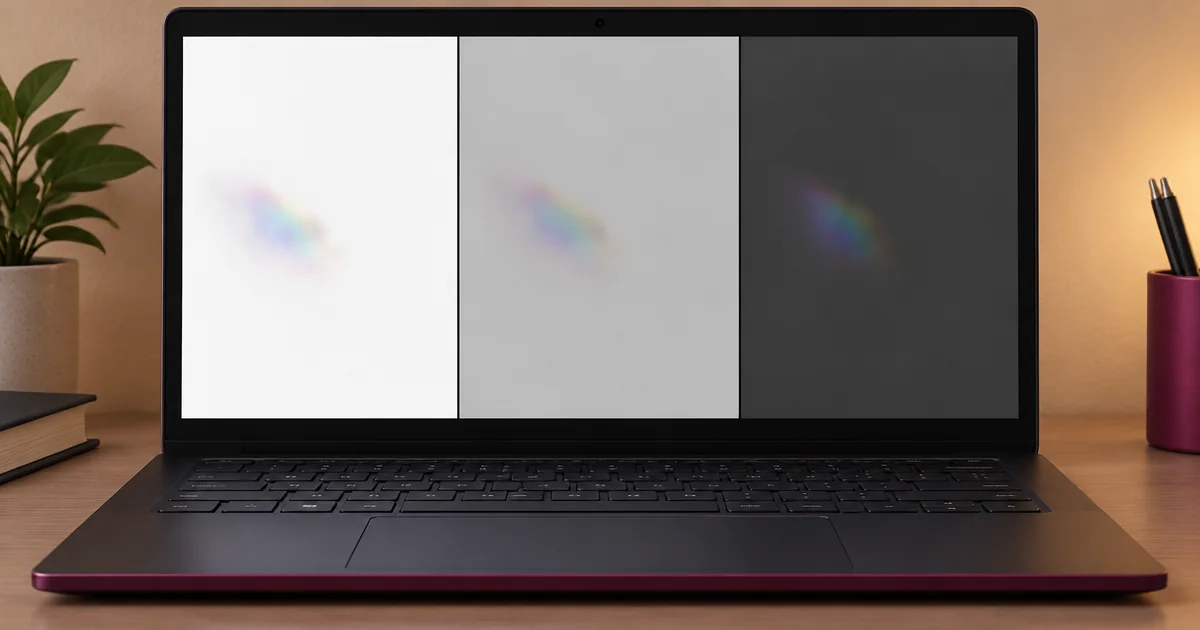
How to run this check
- Step 1
Clean without pressure
Turn the device off and wipe the outer surface gently with an appropriate microfiber cloth.
- Step 2
Compare neutral frames
View white, light gray and dark gray at normal brightness.
- Step 3
Check whether it moves
A surface smear changes after cleaning; an internal mark remains fixed in the same location.
- Step 4
Document safely
Photograph the mark without pushing the panel and note whether it affects ordinary content.
What a screen pressure mark looks like
Pressure can disturb the liquid-crystal and diffuser layers behind the glass. The result may look pale, rainbow-like, cloudy or darker than the surrounding area. Unlike surface dirt, it remains fixed when the outer glass is cleaned.
Do not massage the panel
Advice to press or rub an LCD can spread damage, crack layers or create more marks. Power the device down before cleaning and use only light pressure on the outer surface. A persistent internal bruise generally requires panel assessment rather than a browser or software fix.
Prevent another mark
Keep objects off a closed laptop keyboard, avoid carrying a device under heavy books, use a rigid sleeve and do not grip a thin display by one corner. On phones and tablets, replace a case that presses unevenly on the bezel.